<?xml version="1.0" encoding="utf-8"?>
<feed xmlns="http://www.w3.org/2005/Atom">

  <title><![CDATA[SSMS Tips and Tricks]]></title>
  <link href="http://ssmstipsandtricks.com/atom.xml" rel="self"/>
  <link href="http://ssmstipsandtricks.com/"/>
  <updated>2018-05-13T11:00:08-05:00</updated>
  <id>http://ssmstipsandtricks.com/</id>
  <author>
    <name><![CDATA[Latish Sehgal]]></name>
    
  </author>
  <generator uri="http://octopress.org/">Octopress</generator>

  
  <entry>
    <title type="html"><![CDATA[Enhance Your Scroll Bar]]></title>
    <link href="http://ssmstipsandtricks.com/blog/2016/09/18/enhance-your-scroll-bar/"/>
    <updated>2016-09-18T16:48:00-05:00</updated>
    <id>http://ssmstipsandtricks.com/blog/2016/09/18/enhance-your-scroll-bar</id>
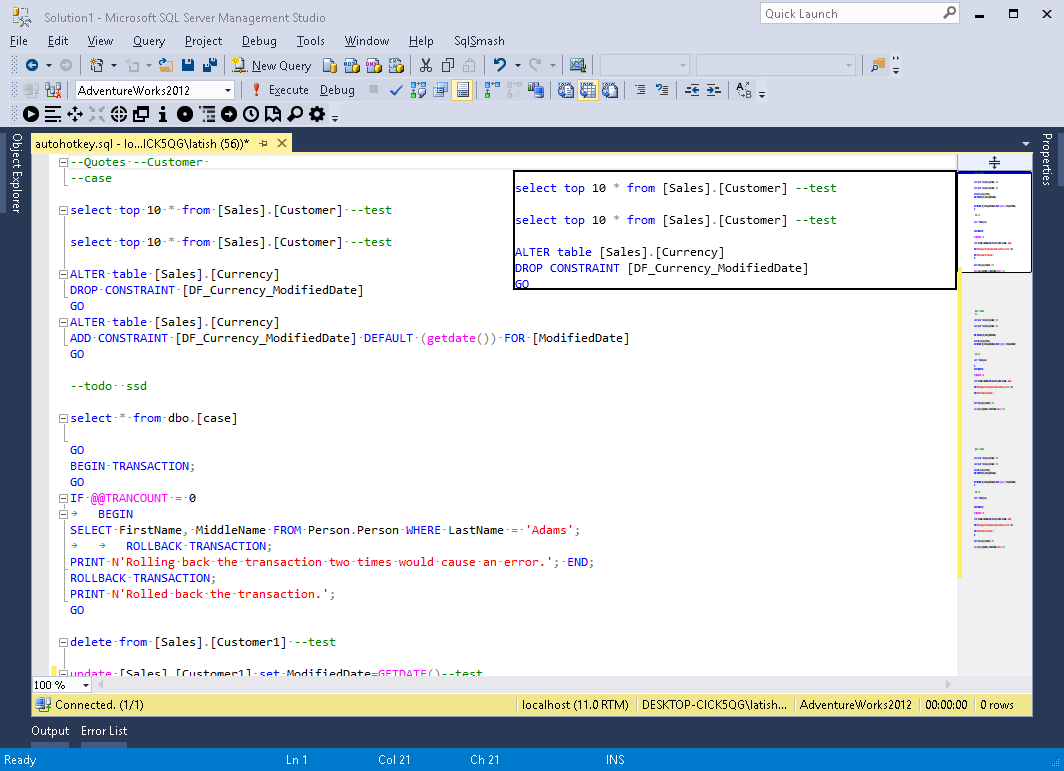
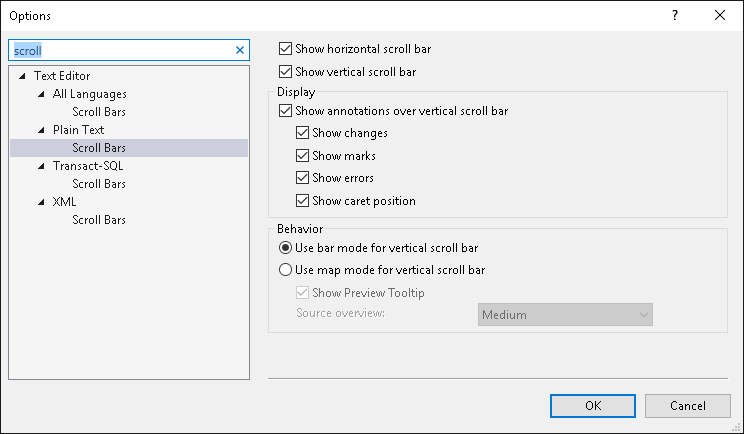
    <content type="html"><![CDATA[<p>If you right click on the scrollbar in your SSMS 2016 editor, you can click on Scroll Bar Options and customize it. You can enable markers for changes (yellow for unsaved changes, green for recently saved changes), marks, errors and current caret position.</p>

<p><img src="http://ssmstipsandtricks.com/images/blog/scrollbar1.png" alt="" /></p>

<p>You can also switch to map mode (with Preview) for the vertical scrollbar, and this gives you a preview of the code as you hover over the scrollbar.</p>

<p><img src="http://ssmstipsandtricks.com/images/blog/scrollbar2.png" alt="" /></p>

<p>Try out the different options and see what suits your workflow best.</p>
]]></content>
  </entry>
  
  <entry>
    <title type="html"><![CDATA[Search and Execute Actions Using Quick Launch]]></title>
    <link href="http://ssmstipsandtricks.com/blog/2016/09/17/search-and-execute-actions-using-quick-launch/"/>
    <updated>2016-09-17T16:24:00-05:00</updated>
    <id>http://ssmstipsandtricks.com/blog/2016/09/17/search-and-execute-actions-using-quick-launch</id>
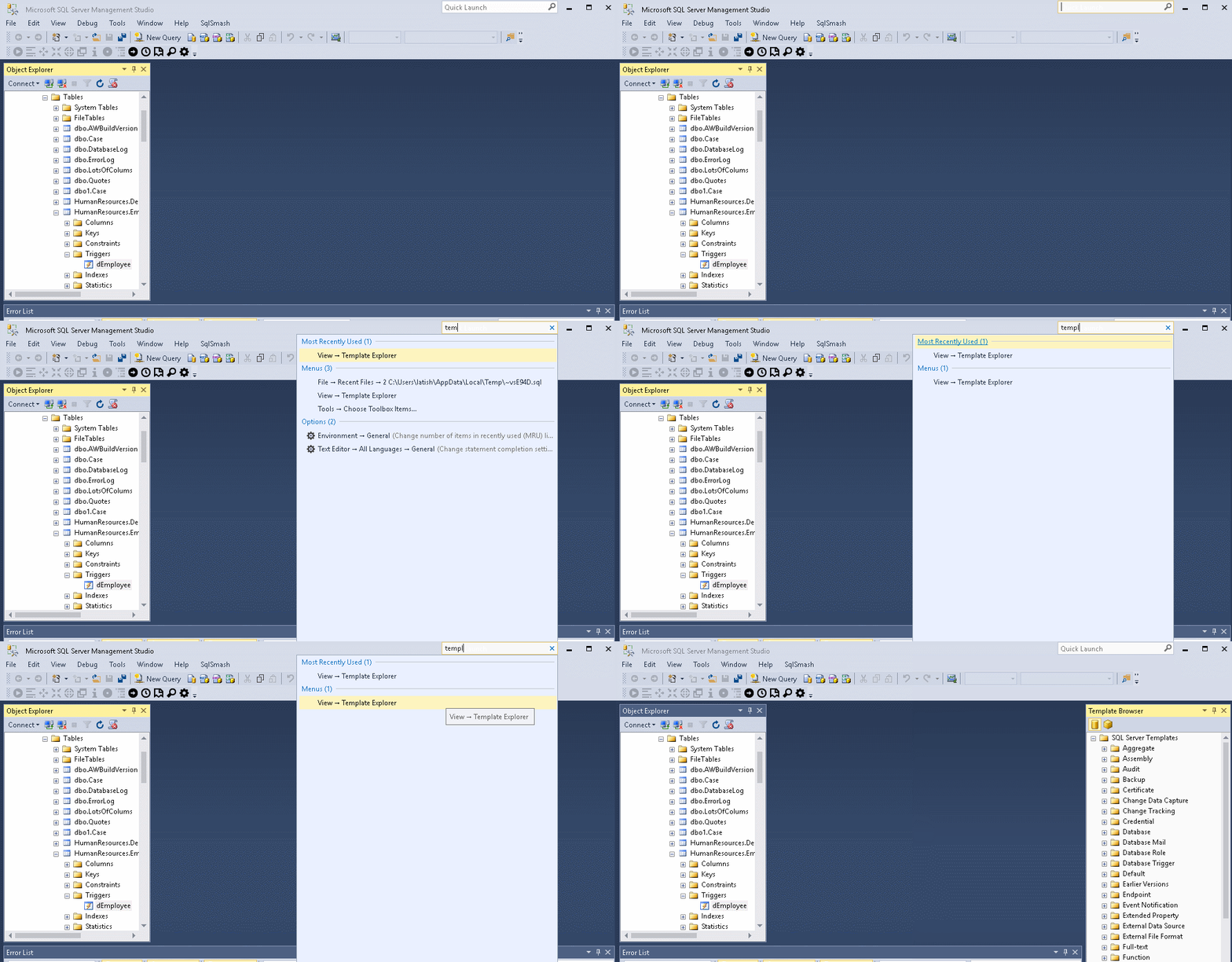
    <content type="html"><![CDATA[<p>One of my favorite features in SSMS 2016 is Quick Launch. If you focus in the Quick Launch box in the top right corner, you can start typing and it&rsquo;ll show you the list of matching options and menus.</p>

<p><img src="\images\blog\quick_launch1.gif" alt="" /></p>

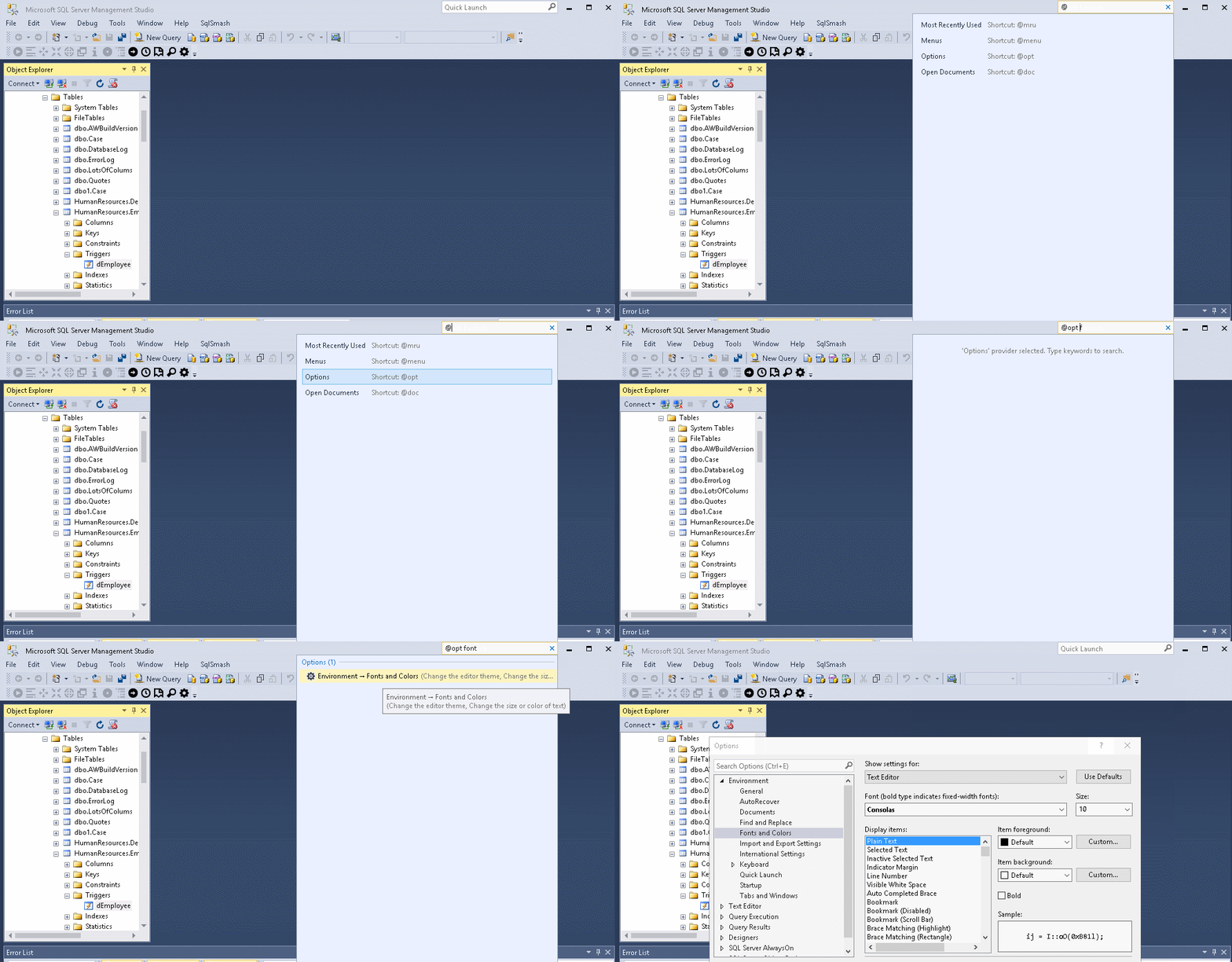
<p>You can also search in specific categories by prefixing the search
string with @.</p>

<table><tbody>
<tr ><th style="font-weight:bold;padding:5px;border:2px solid
brown">Shortcut</th><th style="font-weight:bold;padding:5px;border:2px solid brown">Description</th></tr>
<tr><td style="border:1px solid brown">@mru</td><td style="border:1px solid brown">Recently Used Items</td></tr>
<tr><td style="border:1px solid brown">@menu</td><td style="border:1px solid brown">Menu Items.</td></tr>
<tr><td style="border:1px solid brown">@opt</td><td style="border:1px solid brown">Settings in Options dialog box.</td></tr>
<tr><td style="border:1px solid brown">@doc</td><td style="border:1px solid brown">Currently Opened file names/paths</td></tr>
</tbody></table>


<br/>


<p><img src="\images\blog\quick_launch2.gif" alt="" /></p>
]]></content>
  </entry>
  
  <entry>
    <title type="html"><![CDATA[Switch Color Theme]]></title>
    <link href="http://ssmstipsandtricks.com/blog/2016/09/16/switch-color-theme/"/>
    <updated>2016-09-16T14:43:00-05:00</updated>
    <id>http://ssmstipsandtricks.com/blog/2016/09/16/switch-color-theme</id>
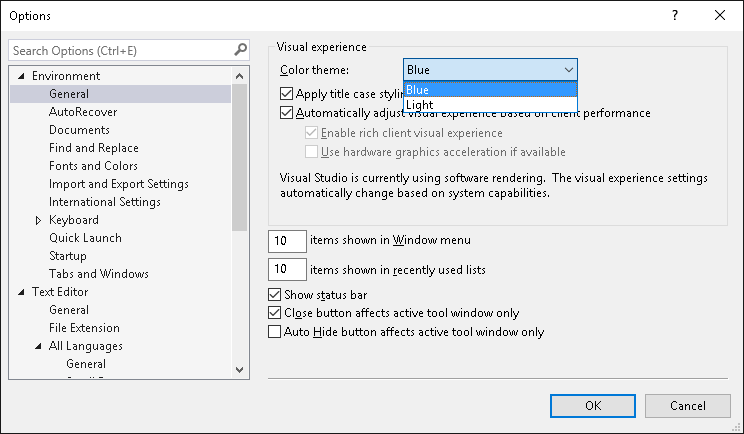
    <content type="html"><![CDATA[<p>In SSMS 2016, you can switch between a Blue or Light Theme by going to Tools->Options->Environment->General->Color Theme. There is no support for Dark Theme yet, but hopefully that happens soon. You might find <a href="http://blogs.sqlsentry.com/aaronbertrand/making-ssms-pretty-my-dark-theme/">this post</a> helpful if you want to configure a dark theme yourself.</p>

<p><img src="http://ssmstipsandtricks.com/images/blog/theme.png" alt="" /></p>
]]></content>
  </entry>
  
  <entry>
    <title type="html"><![CDATA[Switch Between Open Files With File Dropdown List]]></title>
    <link href="http://ssmstipsandtricks.com/blog/2016/09/15/switch-between-open-files-with-file-dropdown-list/"/>
    <updated>2016-09-15T08:16:00-05:00</updated>
    <id>http://ssmstipsandtricks.com/blog/2016/09/15/switch-between-open-files-with-file-dropdown-list</id>
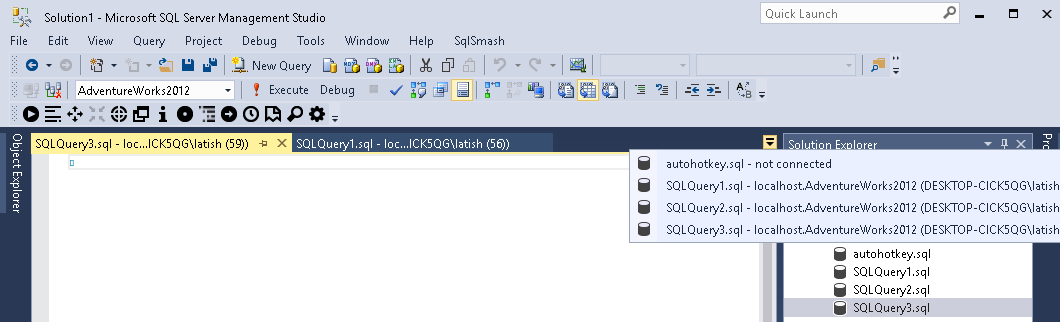
    <content type="html"><![CDATA[<p>You can switch between currently opened files and windows in SSMS with <strong>Ctrl + Tab</strong> and <strong>Ctrl + Shift + Tab</strong>. The interface can become pretty noisy sometimes when you have too many files open. An alternative way to do this is by clicking on the dropdown arrow at the extreme right of the files tab and seeing a list of all the open files. You can also open the dropdown by pressing <strong>Alt + Ctrl + Down</strong> keys. If you are looking for a specific file, you can start typing the name of the file, and it should get selected.</p>

<p><img src="http://ssmstipsandtricks.com/images/blog/filelist.png" alt="" /></p>
]]></content>
  </entry>
  
  <entry>
    <title type="html"><![CDATA[Search and Filter in Options and Solution Explorer]]></title>
    <link href="http://ssmstipsandtricks.com/blog/2016/09/14/search-and-filter-in-options-and-solution-explorer/"/>
    <updated>2016-09-14T18:34:00-05:00</updated>
    <id>http://ssmstipsandtricks.com/blog/2016/09/14/search-and-filter-in-options-and-solution-explorer</id>
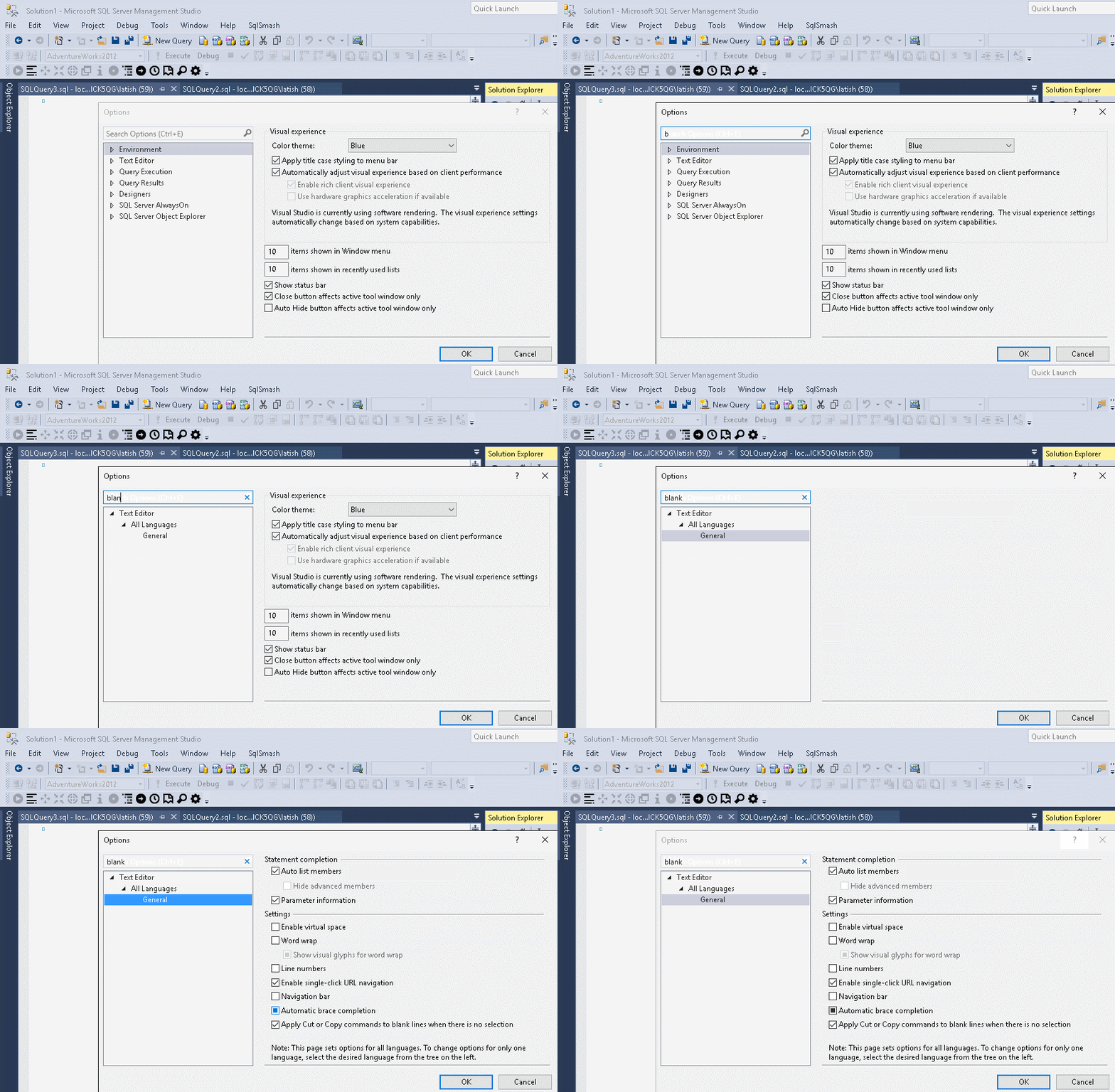
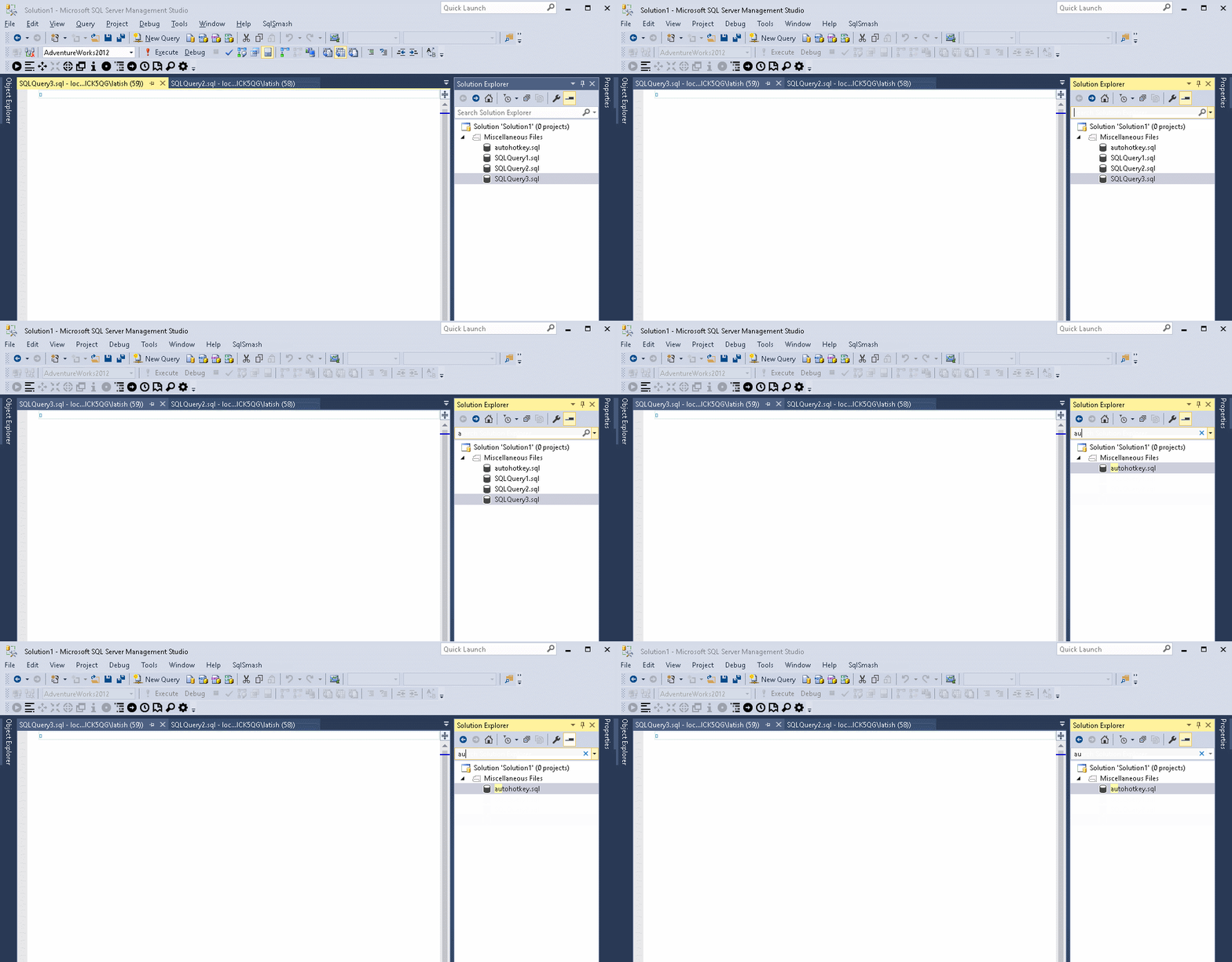
    <content type="html"><![CDATA[<p>You can now search in SSMS 2016 Options, as well as in the Solution Explorer. Click inside the search bar at the top and type your search term. The relevant items get filtered and displayed.</p>

<p><img src="http://ssmstipsandtricks.com/images/blog/filter2.gif" alt="" /></p>

<p><img src="http://ssmstipsandtricks.com/images/blog/filter1.gif" alt="" /></p>
]]></content>
  </entry>
  
  <entry>
    <title type="html"><![CDATA[Disable Copy of Empty Text]]></title>
    <link href="http://ssmstipsandtricks.com/blog/2016/09/13/disable-copy-of-empty-text/"/>
    <updated>2016-09-13T17:33:00-05:00</updated>
    <id>http://ssmstipsandtricks.com/blog/2016/09/13/disable-copy-of-empty-text</id>
    <content type="html"><![CDATA[<p>I have had this happen to me so many times:</p>

<ul>
<li>I select a block of text to copy;</li>
<li>I move the cursor the place where I want to paste the code;</li>
<li>I accidentally press Ctrl+C again instead of Ctrl+V;</li>
<li>My block of copied text is replaced by an empty block;</li>
<li>I have to go back and do it all over again. Grrrrr.</li>
</ul>


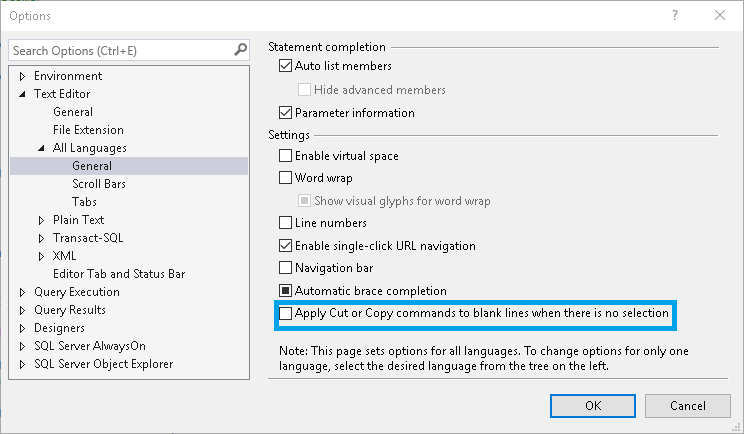
<p>Luckily I found out that this behavior can be disabled in SSMS. To do so, go to
Tools > Options > Text Editor > All Languages > General > &lsquo;Apply Cut or Copy Commands to blank lines when there is no selection&rsquo; and uncheck the checkbox.</p>

<p><img src="http://ssmstipsandtricks.com/images/blog/blank_line.png" alt="" /></p>
]]></content>
  </entry>
  
  <entry>
    <title type="html"><![CDATA[SqlSmash now has a free Community version]]></title>
    <link href="http://ssmstipsandtricks.com/blog/2016/05/01/sqlsmash-now-has-a-free-community-version/"/>
    <updated>2016-05-01T15:50:00-05:00</updated>
    <id>http://ssmstipsandtricks.com/blog/2016/05/01/sqlsmash-now-has-a-free-community-version</id>
    <content type="html"><![CDATA[<p><a href="http://www.sqlsmash.com/">SqlSmash</a> now has a free community edition. The community edition has a subset of the features that you get in the standard edition. These currently include:</p>

<h2>Go To Object</h2>

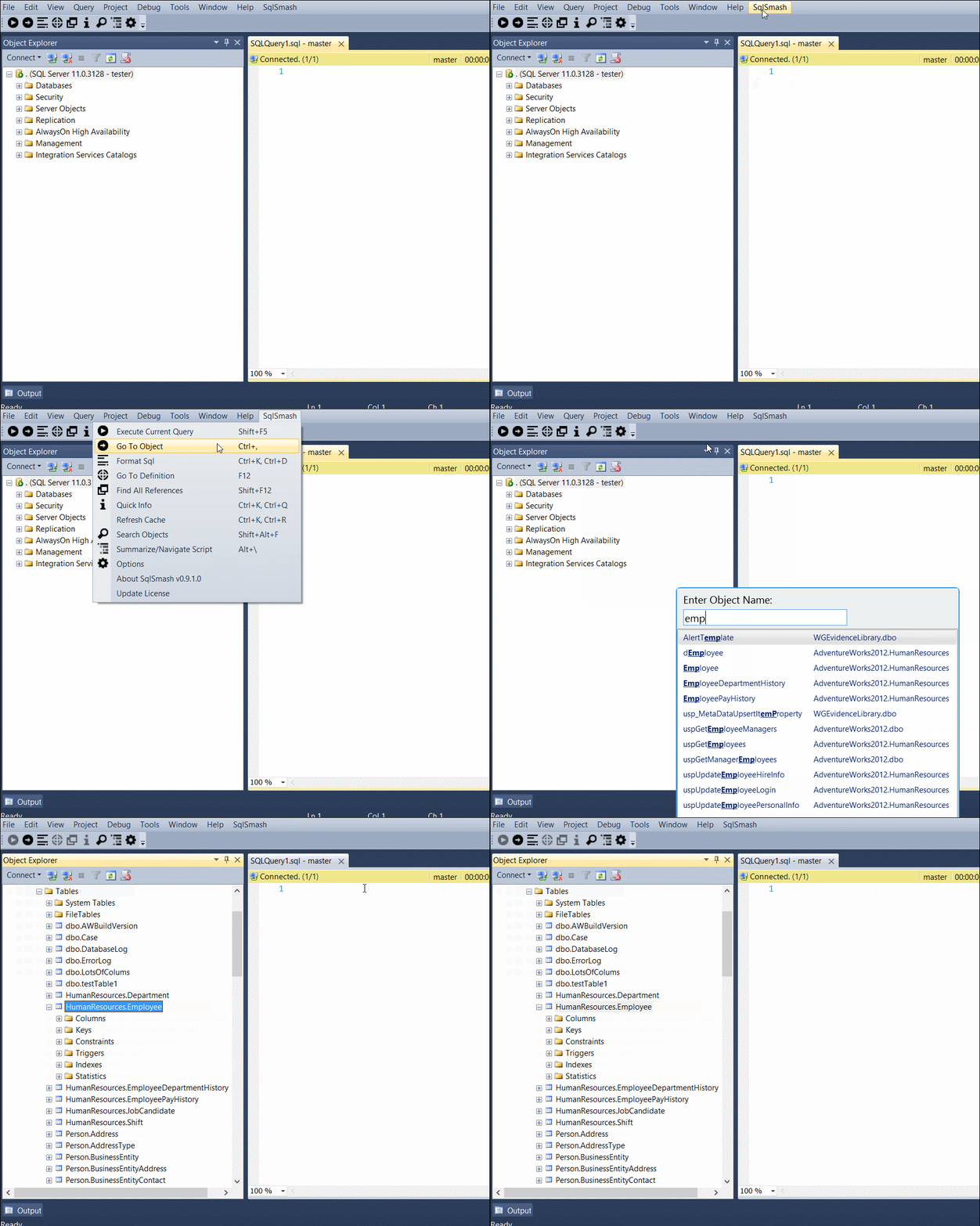
<p>When you are working with different servers and databases, it&rsquo;s fairly tedious to locate an object in Object Explorer (expand, expand, expand, pick folder, scan objects). Now you can easily navigate to any table, stored procedure, function or trigger in only a few keystrokes.
<img src="http://www.sqlsmash.com/images/blog/gotoobject.gif" alt="" /></p>

<h2>Increase/Decrease Text Selection</h2>

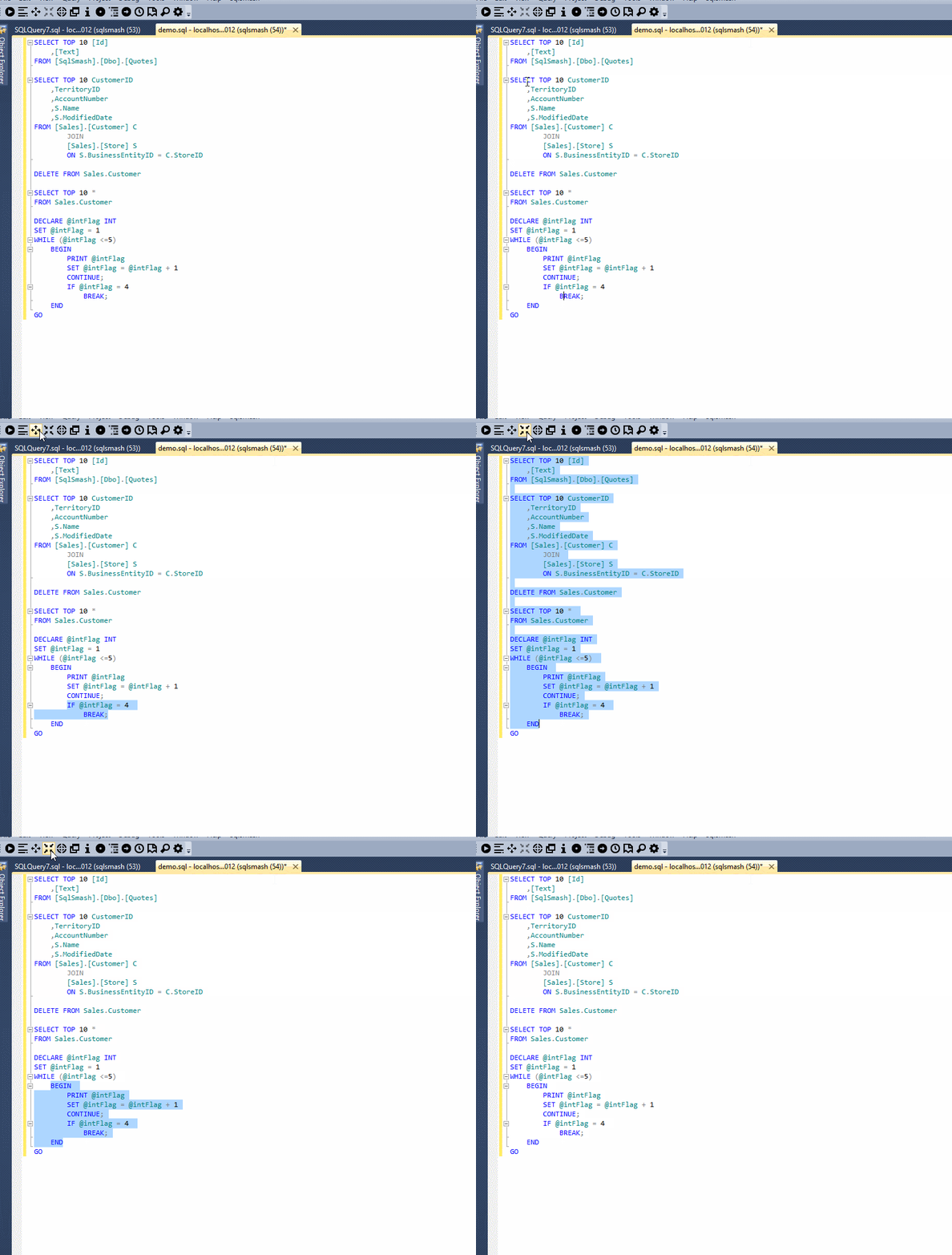
<p>Increase the selected text quickly to the logical parent of the current selection. Decrease Selection undoes the effect of the previous operation.
<img src="http://www.sqlsmash.com/images/blog/selection.gif" alt="" /></p>

<h2>Search Database Objects</h2>

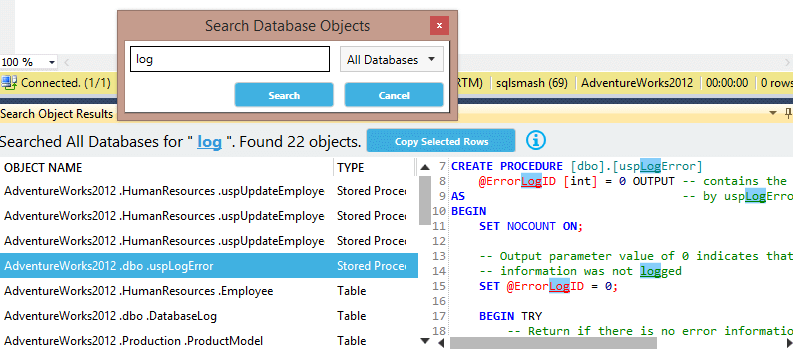
<p>Search all your database objects for any text. View definition for matching objects, select them in Object Explorer and Copy results in an Excel friendly format.
<img src="http://www.sqlsmash.com/images/ssms/searchv2.png" alt="" /></p>

<h2>Format Sql</h2>

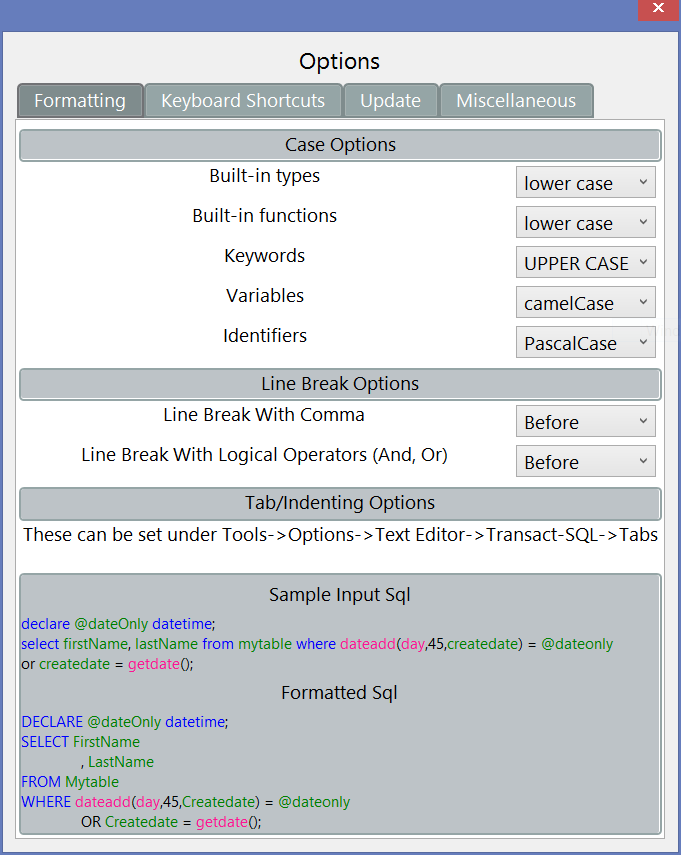
<p>Format and indent your SQL script according to your preferences. You can choose the casing preferences for built in types, functions, Keywords, variables and identifiers. You can also choose whether to insert new lines before or after commas and logical operators (like Or, And).
<img src="http://www.sqlsmash.com/images/blog/options.png" alt="" /></p>

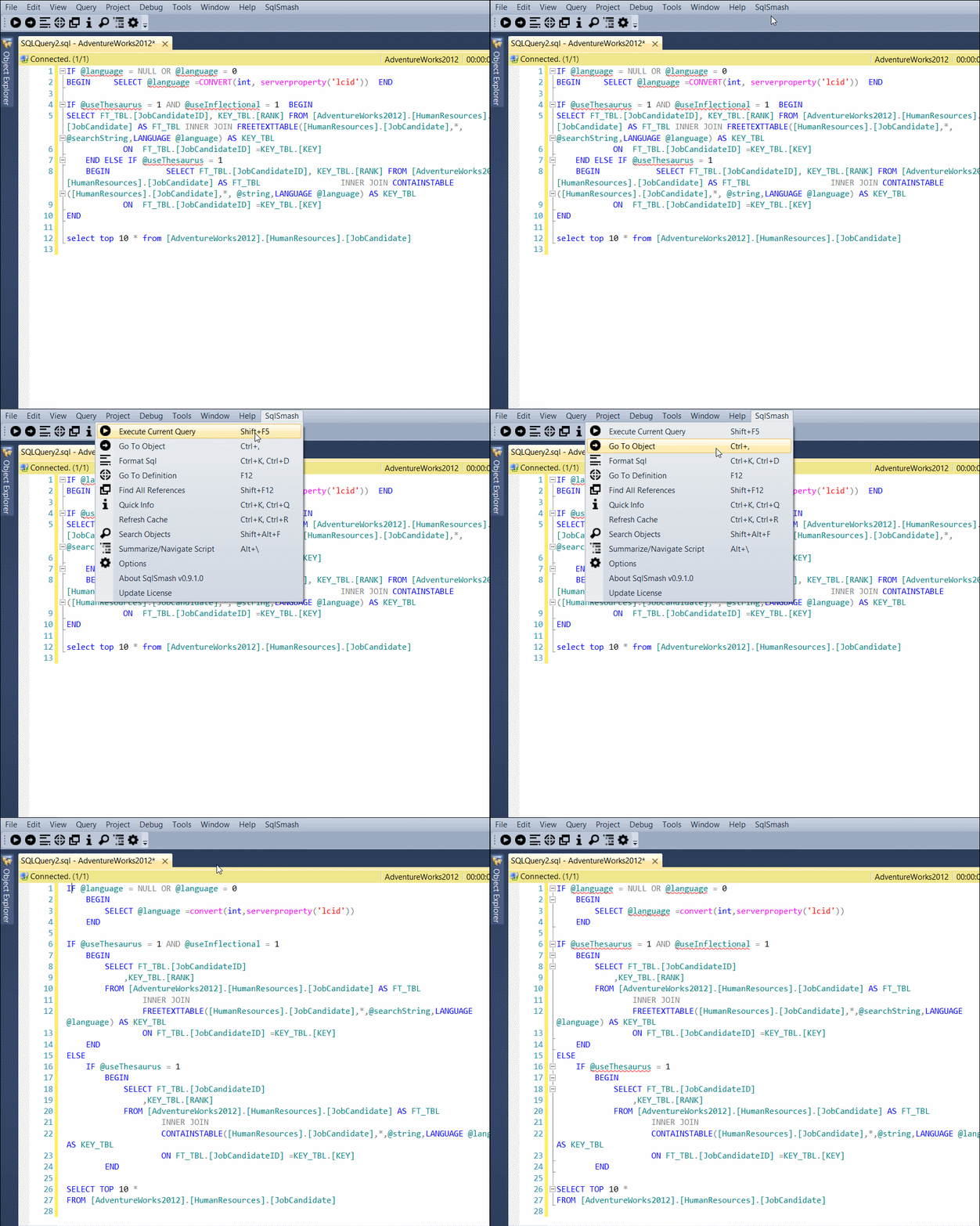
<p>Just select the text you want to format and click on SqlSmash->Format Sql. If you don&rsquo;t select any text, the whole document is formatted.
<img src="http://www.sqlsmash.com/images/blog/format.gif" alt="" /></p>

<h2>Execute Current Query</h2>

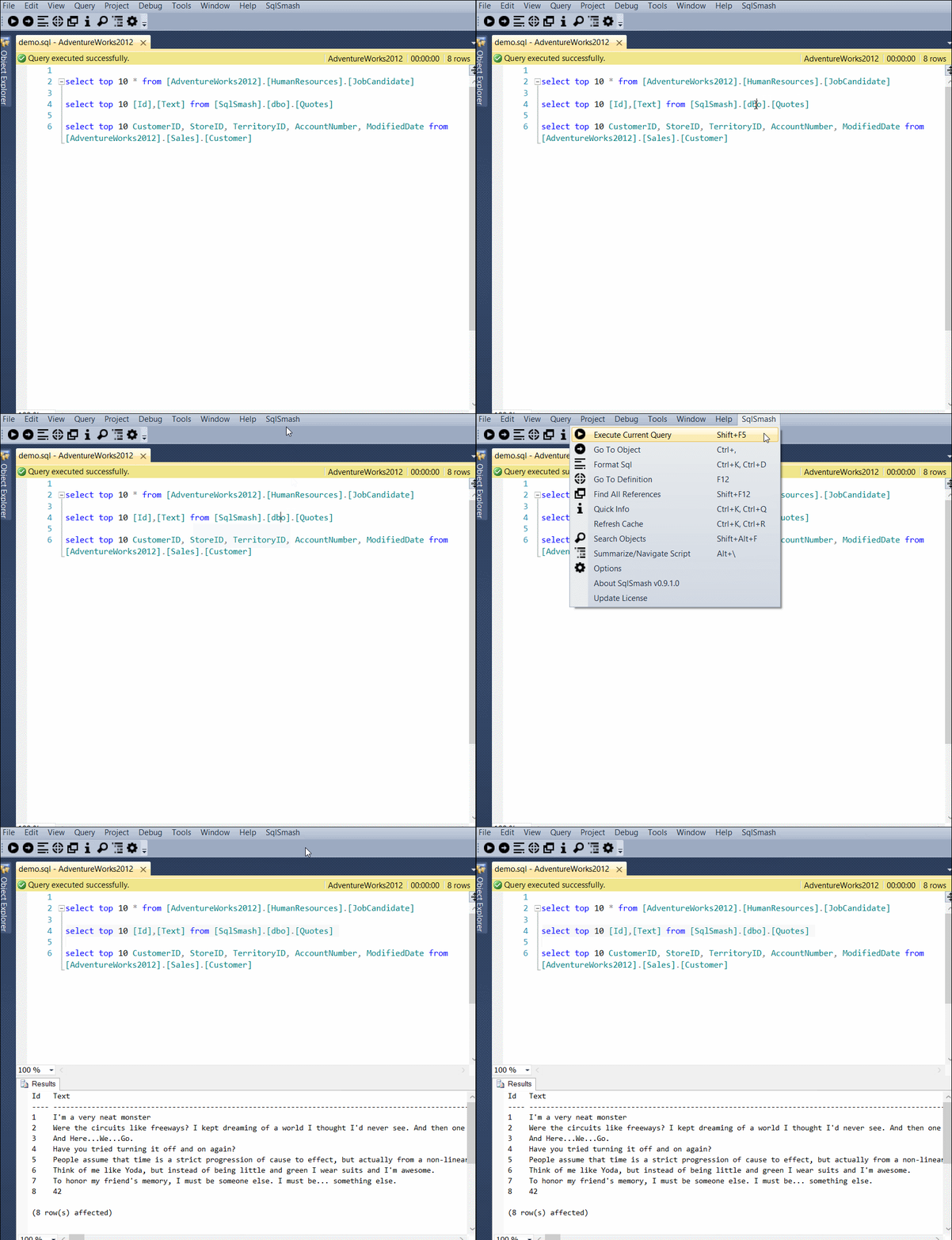
<p>In SSMS, if you have multiple queries in your editor and you want to run just one of them, you have to manually select your query and then press the Execute button. Now you don&rsquo;t need to do that anymore. With a single click, now you can execute the query around your cursor.
<img src="http://www.sqlsmash.com/images/blog/execute.gif" alt="" /></p>

<h2>Insert Statement Generation</h2>

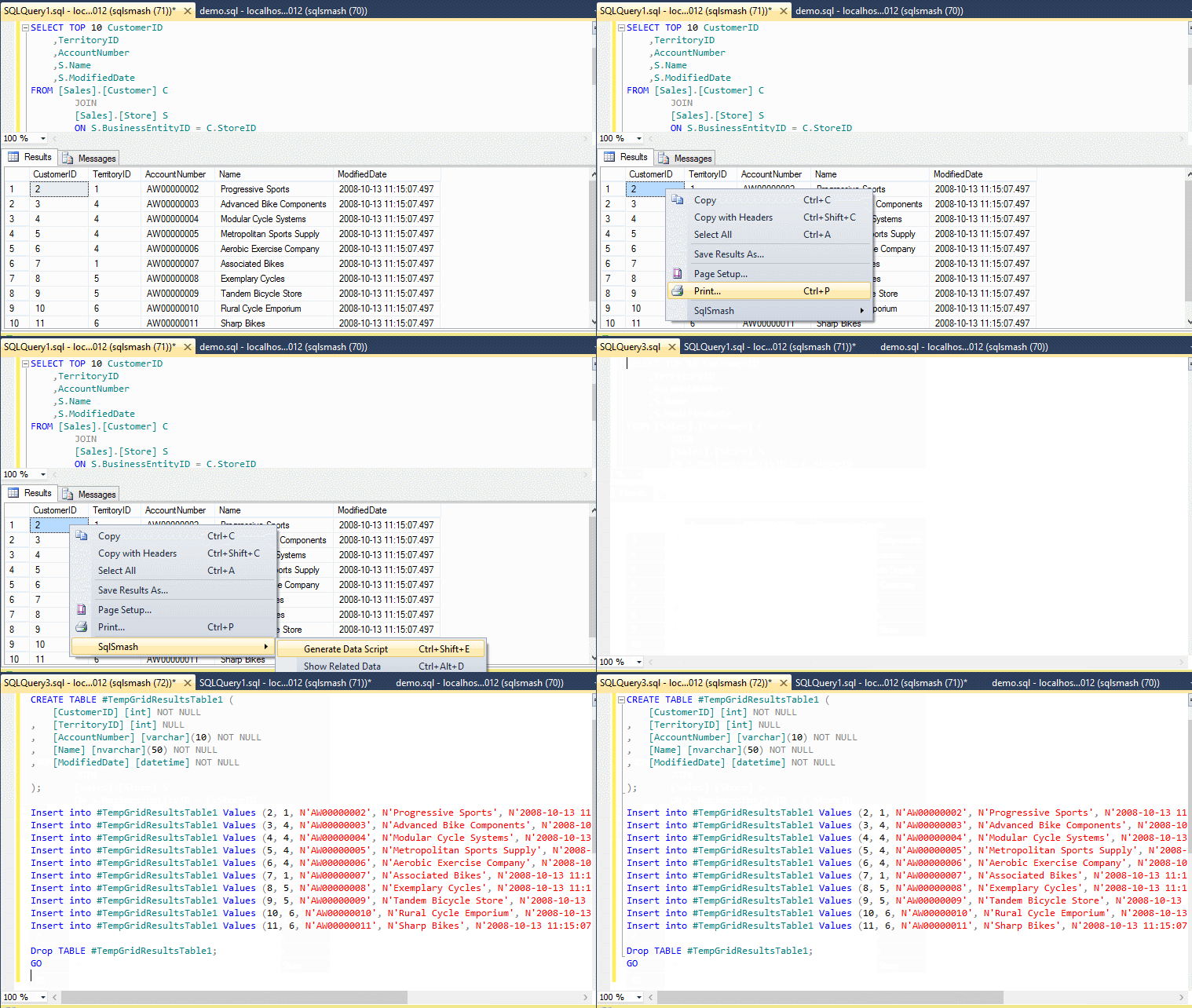
<p>The Generate Data Script functionality lets you generate Insert Statements for any data in your results grid. This can be very handy when you need to move data quickly between different tables across databases or servers. Right click inside the results grid and select the &ldquo;Generate Data Script&rdquo; option.<br/>
<img src="http://www.sqlsmash.com/images/blog/insert1.gif" alt="" /></p>

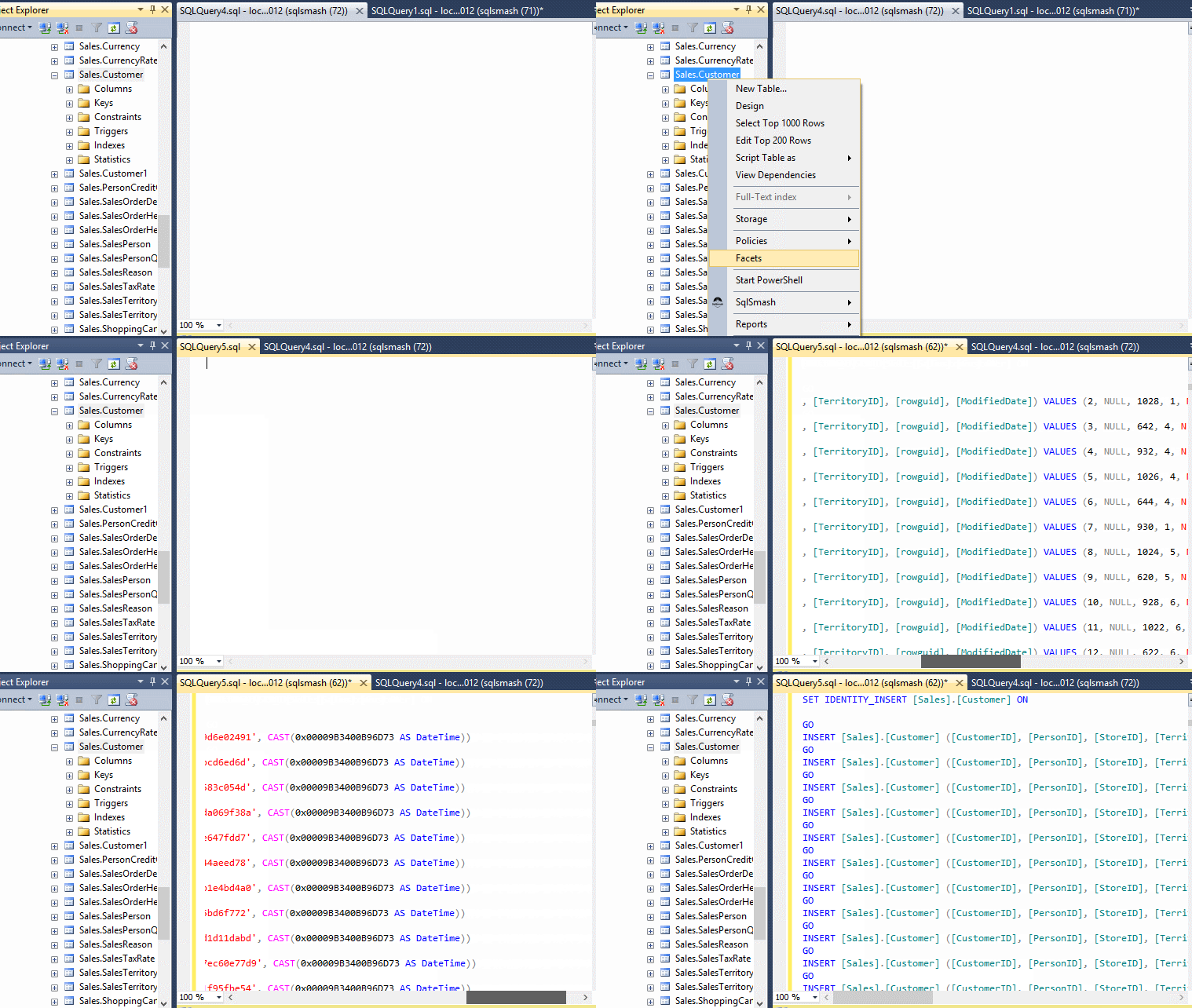
<p>You can also generate Insert Statements from any table by right clicking it in Object Explorer and choosing the corresponding option in the menu.<br/>
<img src="http://www.sqlsmash.com/images/blog/insert2.gif" alt="" /></p>

<h2>Data Protection</h2>

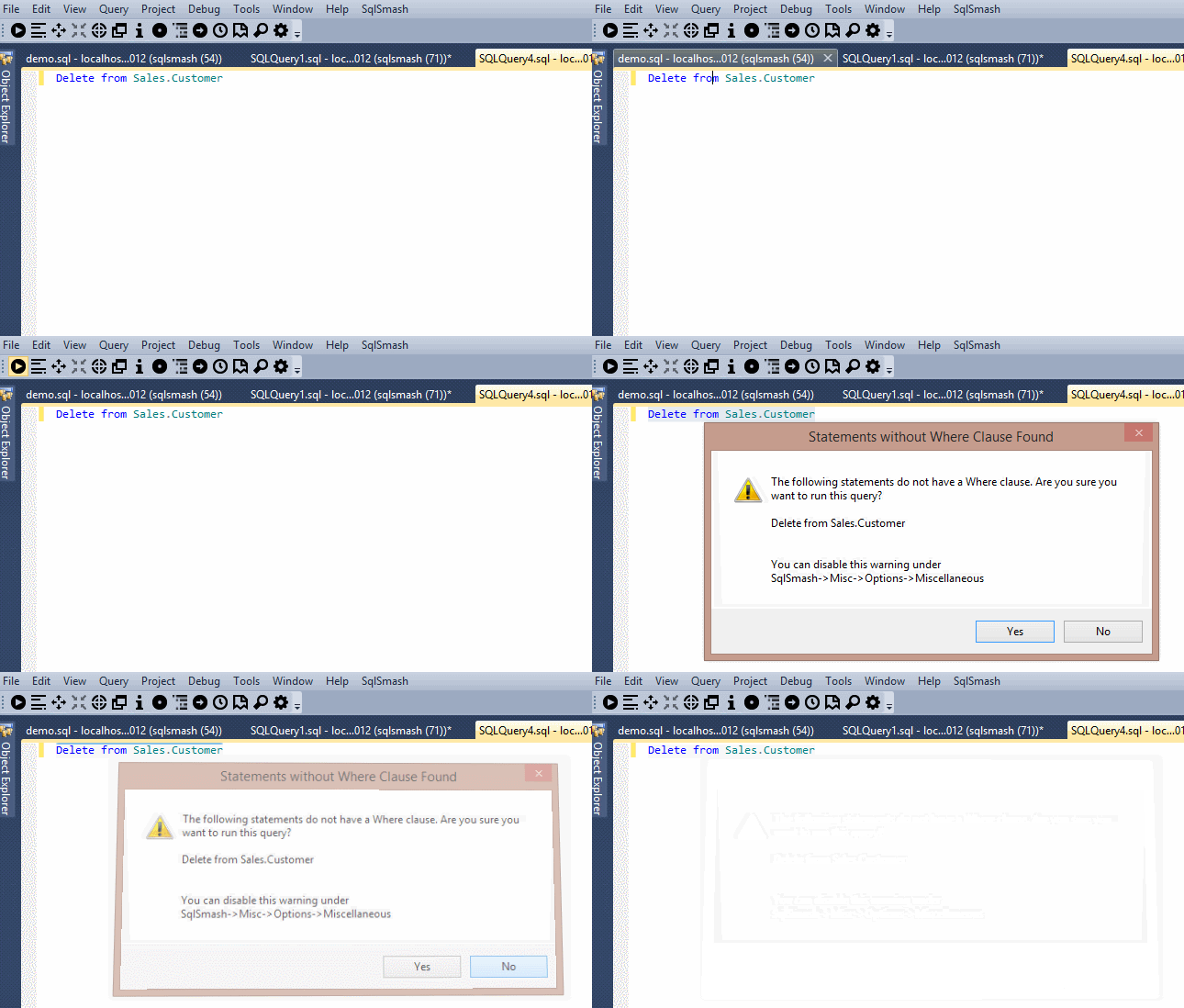
<p>The Data Protection feature gives you a warning if you are running a Delete or Update statement without a Where clause. This gives you another layer of protection against accidentally altering or deleting your data. You can disable this check in Settings if it is not helpful to you.<br/>
<img src="http://www.sqlsmash.com/images/blog/protect.gif" alt="" /></p>
]]></content>
  </entry>
  
  <entry>
    <title type="html"><![CDATA[Use Go Command to Execute Statement Multiple Times]]></title>
    <link href="http://ssmstipsandtricks.com/blog/2015/07/21/use-go-command-to-execute-statement-multiple-times/"/>
    <updated>2015-07-21T11:51:00-05:00</updated>
    <id>http://ssmstipsandtricks.com/blog/2015/07/21/use-go-command-to-execute-statement-multiple-times</id>
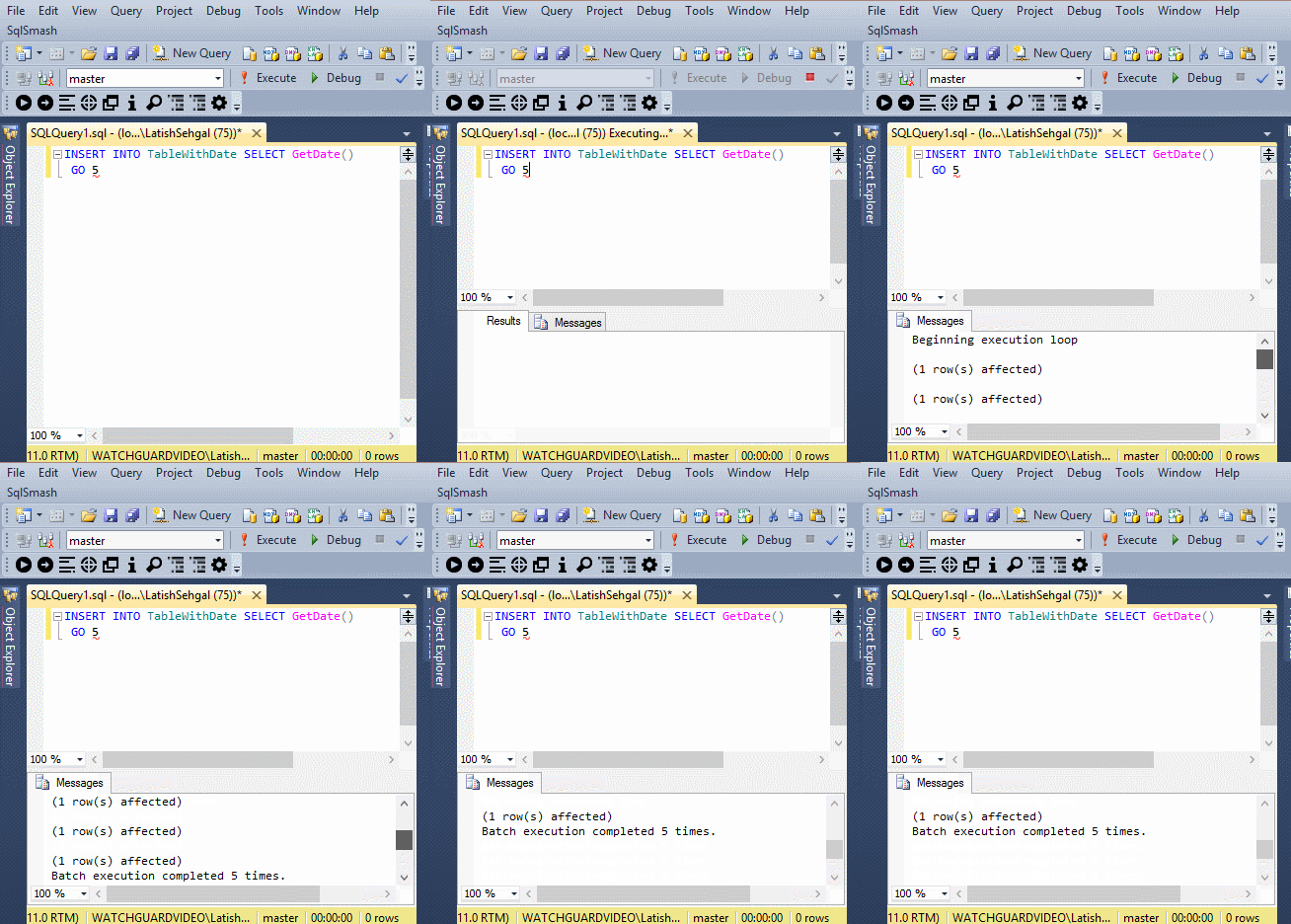
    <content type="html"><![CDATA[<p>If you enter a number after the GO command, then the statement or batch preceding is executed that many times. This can be useful for creating test data, among other things.</p>

<p><img src="http://ssmstipsandtricks.com/images/blog/go.gif" alt="" /></p>
]]></content>
  </entry>
  
  <entry>
    <title type="html"><![CDATA[UnDock tabs and Windows for Multi Monitor Support]]></title>
    <link href="http://ssmstipsandtricks.com/blog/2015/07/14/undock-tabs-and-windows-for-multi-monitor-support/"/>
    <updated>2015-07-14T01:35:00-05:00</updated>
    <id>http://ssmstipsandtricks.com/blog/2015/07/14/undock-tabs-and-windows-for-multi-monitor-support</id>
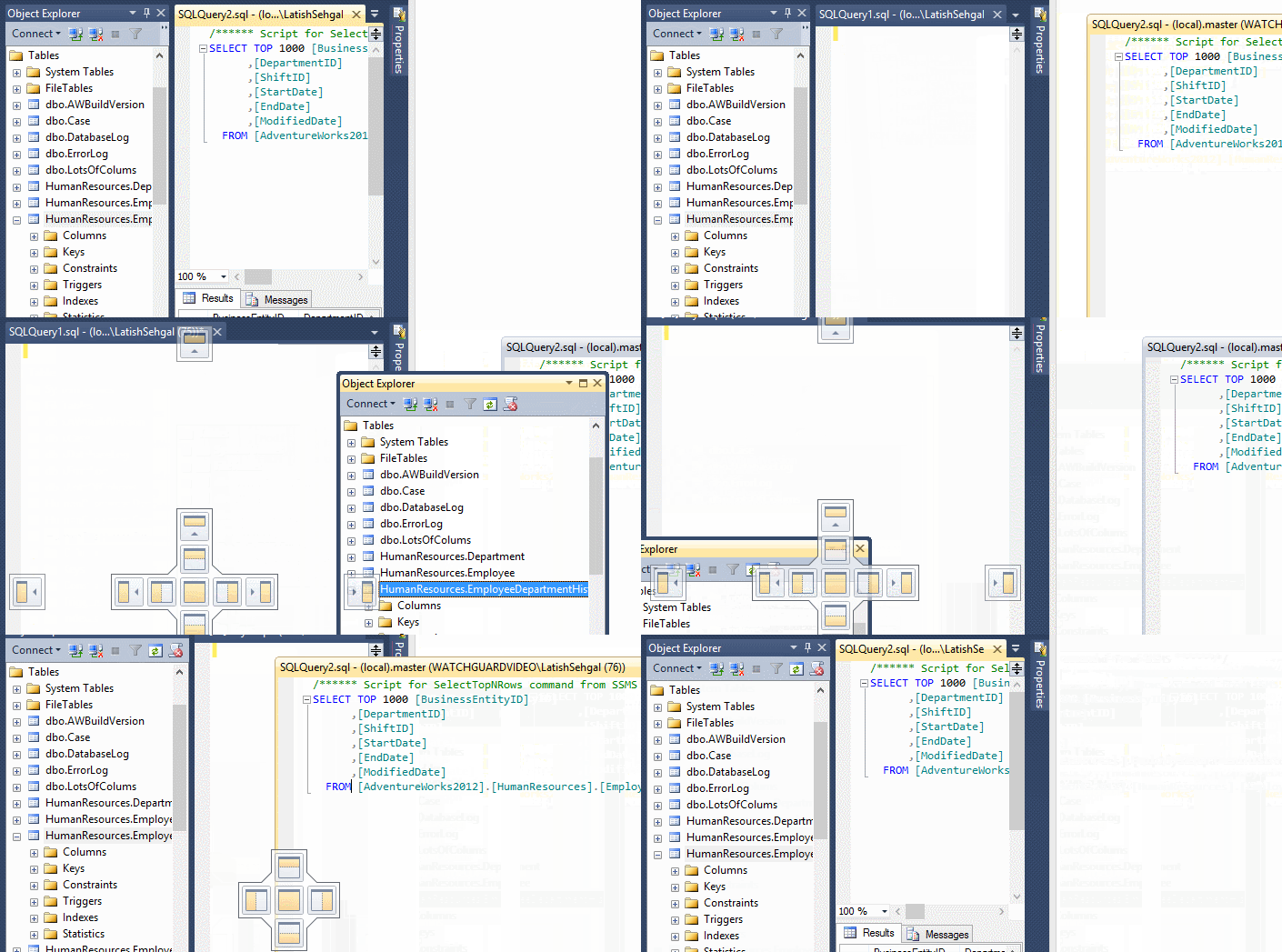
    <content type="html"><![CDATA[<p>From SSMS 2012 and onwards, you can easily dock/undock the query tabs as well as different object windows inside SSMS to make better use of the screen real estate and multilple monitors you have.</p>

<p><img src="http://ssmstipsandtricks.com/images/blog/dock.gif" alt="" /></p>
]]></content>
  </entry>
  
  <entry>
    <title type="html"><![CDATA[Edit Specific Rows in Visual Editor]]></title>
    <link href="http://ssmstipsandtricks.com/blog/2015/07/07/edit-specific-rows-in-visual-editor/"/>
    <updated>2015-07-07T06:02:00-05:00</updated>
    <id>http://ssmstipsandtricks.com/blog/2015/07/07/edit-specific-rows-in-visual-editor</id>
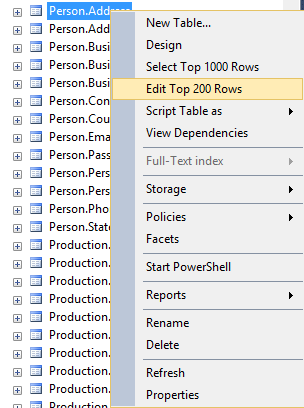
    <content type="html"><![CDATA[<p>You can easily edit the top 200 rows in any table by right clicking on it in Object Explorer and clicking &ldquo;Edit Top 200 rows&rdquo;.</p>

<p><img src="http://ssmstipsandtricks.com/images/blog/edit_top_rows.png" alt="" /></p>

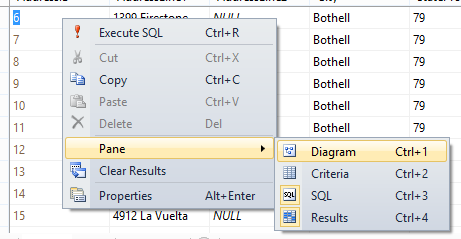
<p>If you want to edit rows outside that range, you can read/change the SQL query selecting the data by right clicking on the data grid and selecting Pane->SQL (or using the keyboard shortcut Ctrl+3).</p>

<p><img src="http://ssmstipsandtricks.com/images/blog/edit_top_rows2.png" alt="" /></p>
]]></content>
  </entry>
  
  <entry>
    <title type="html"><![CDATA[Generate Scripts for existing Table Schemas and Data]]></title>
    <link href="http://ssmstipsandtricks.com/blog/2015/06/30/generate-scripts-for-existing-table-schemas-and-data/"/>
    <updated>2015-06-30T05:16:00-05:00</updated>
    <id>http://ssmstipsandtricks.com/blog/2015/06/30/generate-scripts-for-existing-table-schemas-and-data</id>
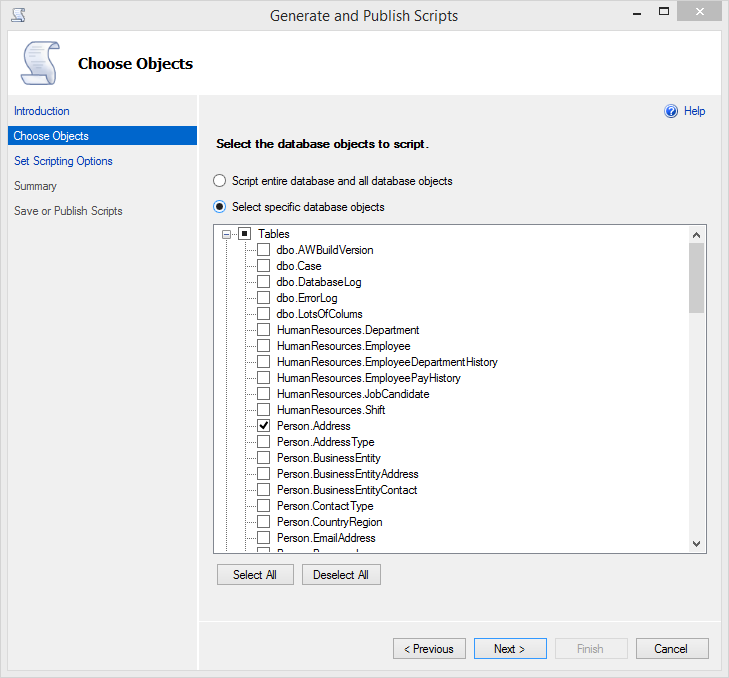
    <content type="html"><![CDATA[<p>To generate SQL scripts for one or more tables along with their data, right click on the database and click on Tasks->Generate Scripts. Choose the object that you want to backup and click on Next.</p>

<p><img src="http://ssmstipsandtricks.com/images/blog/table_script1.png" alt="" /></p>

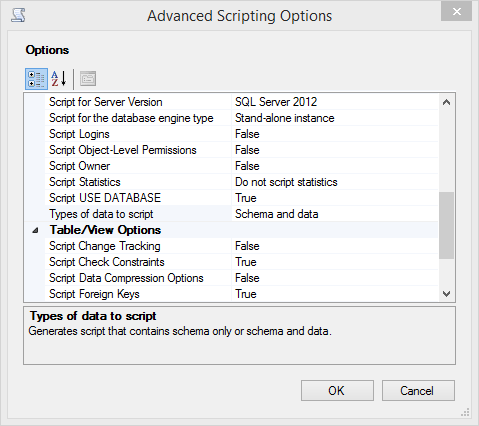
<p>On the next dialog window, choose the location for your script, and then click on Advanced. By default, SQL Server only generates the script for your schema. To change this, select &ldquo;Schema and Data&rdquo; under General->Types of Data to Script. Finish the dialog steps and your script for the schema as well as data will be generated.</p>

<p><img src="http://ssmstipsandtricks.com/images/blog/table_script2.png" alt="" /></p>
]]></content>
  </entry>
  
  <entry>
    <title type="html"><![CDATA[Change Values for Edit Top x and Select Top x Rows commands]]></title>
    <link href="http://ssmstipsandtricks.com/blog/2015/06/23/change-values-for-edit-top-x-and-select-top-x-rows-commands/"/>
    <updated>2015-06-23T04:55:00-05:00</updated>
    <id>http://ssmstipsandtricks.com/blog/2015/06/23/change-values-for-edit-top-x-and-select-top-x-rows-commands</id>
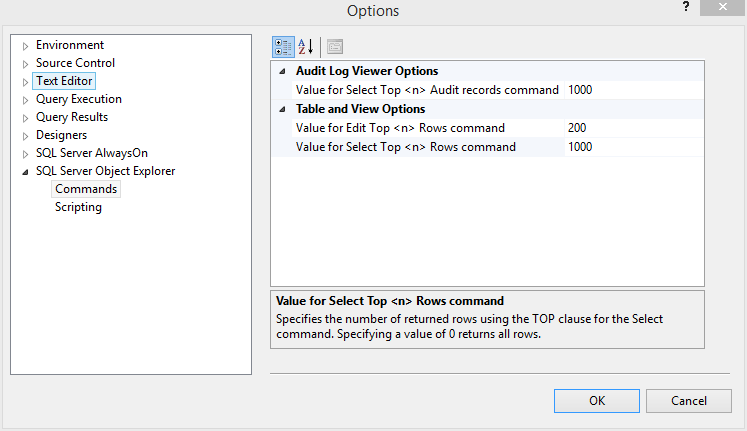
    <content type="html"><![CDATA[<p>When you right click a table inside Object Explorer, you get the options to &ldquo;Select top 1000 rows&rdquo; and &ldquo;Edit top 200 rows&rdquo;, among other things. If you want to change the number of rows used in these commands, you can do so by going to &ldquo;Tools->Options->SQL Server Object Explorer->Commands&rdquo;.</p>

<p><img src="http://ssmstipsandtricks.com/images/blog/top_rows.png" alt="" /></p>
]]></content>
  </entry>
  
  <entry>
    <title type="html"><![CDATA[Manipulate multiple objects using Object Explorer Details]]></title>
    <link href="http://ssmstipsandtricks.com/blog/2015/06/16/manipulate-multiple-objects-using-object-explorer-details/"/>
    <updated>2015-06-16T04:33:00-05:00</updated>
    <id>http://ssmstipsandtricks.com/blog/2015/06/16/manipulate-multiple-objects-using-object-explorer-details</id>
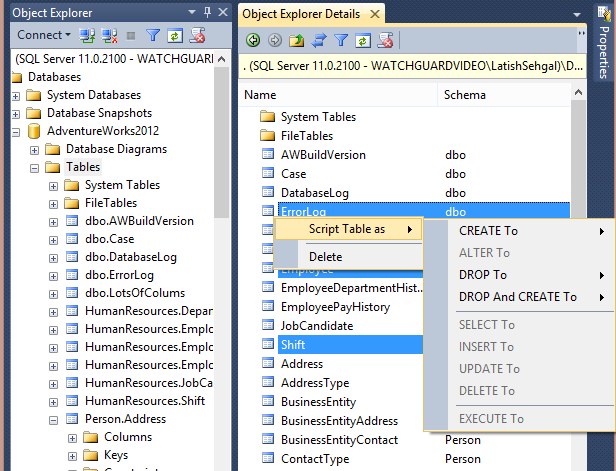
    <content type="html"><![CDATA[<p>You can manipulate objects one at a time within Object Explorer, but one of its frustrating limitations is that you cannot select multiple objects and script or delete them together. You can get around this by pulling up the Object Explorer Details window (View->Object Explorer Details) and clicking on a folder (such as Tables) in Object Explorer. Now you will see a list of all the objects inside that folder in the Details Window, and you can select multiple objects and manipulate them here by holding the Shift or Ctrl keys.</p>

<p><img src="http://ssmstipsandtricks.com/images/blog/multiple_objects.png" alt="" /></p>
]]></content>
  </entry>
  
  <entry>
    <title type="html"><![CDATA[Work Faster using Templates and Snippets]]></title>
    <link href="http://ssmstipsandtricks.com/blog/2015/06/09/work-faster-using-templates-and-snippets/"/>
    <updated>2015-06-09T04:00:00-05:00</updated>
    <id>http://ssmstipsandtricks.com/blog/2015/06/09/work-faster-using-templates-and-snippets</id>
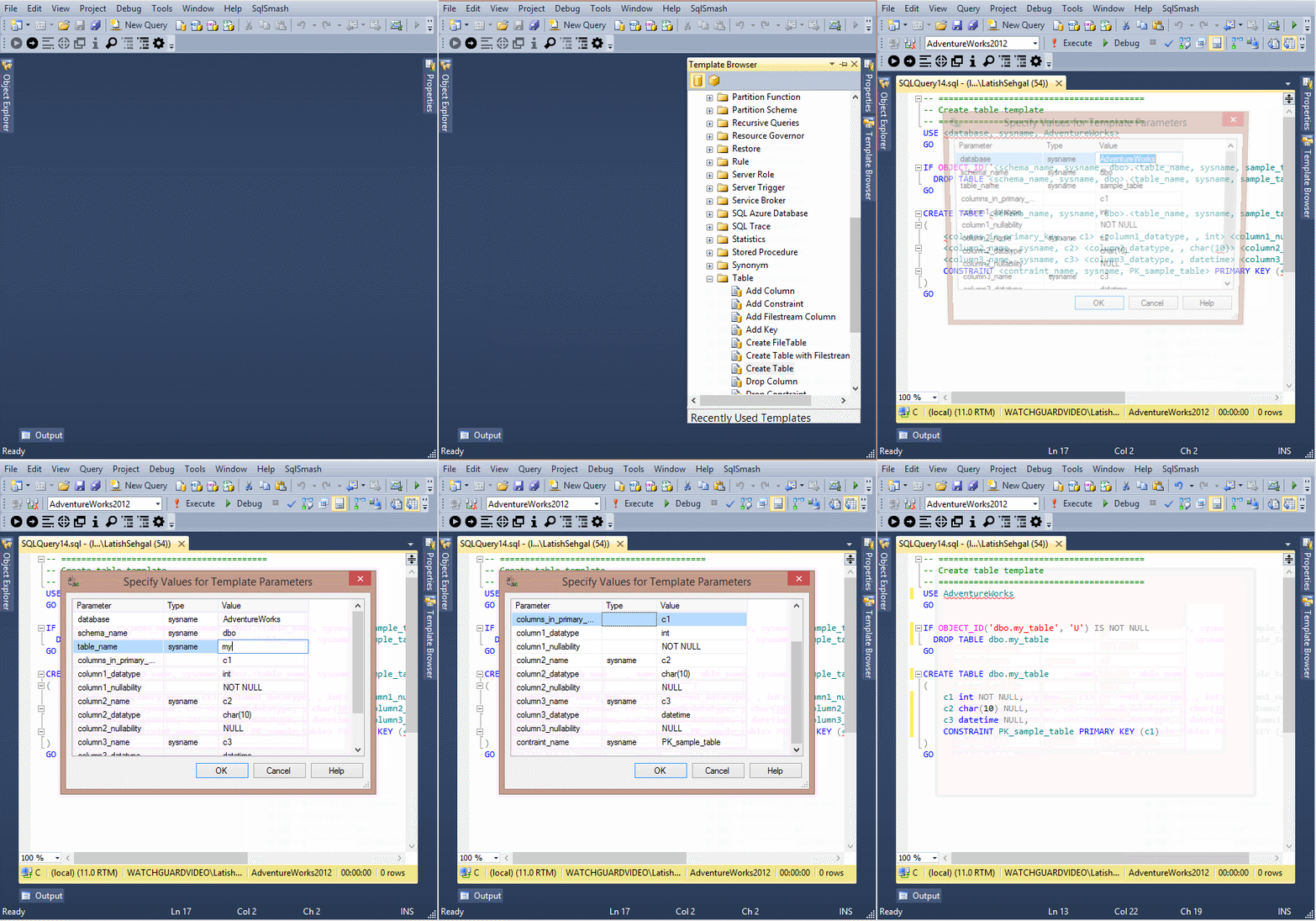
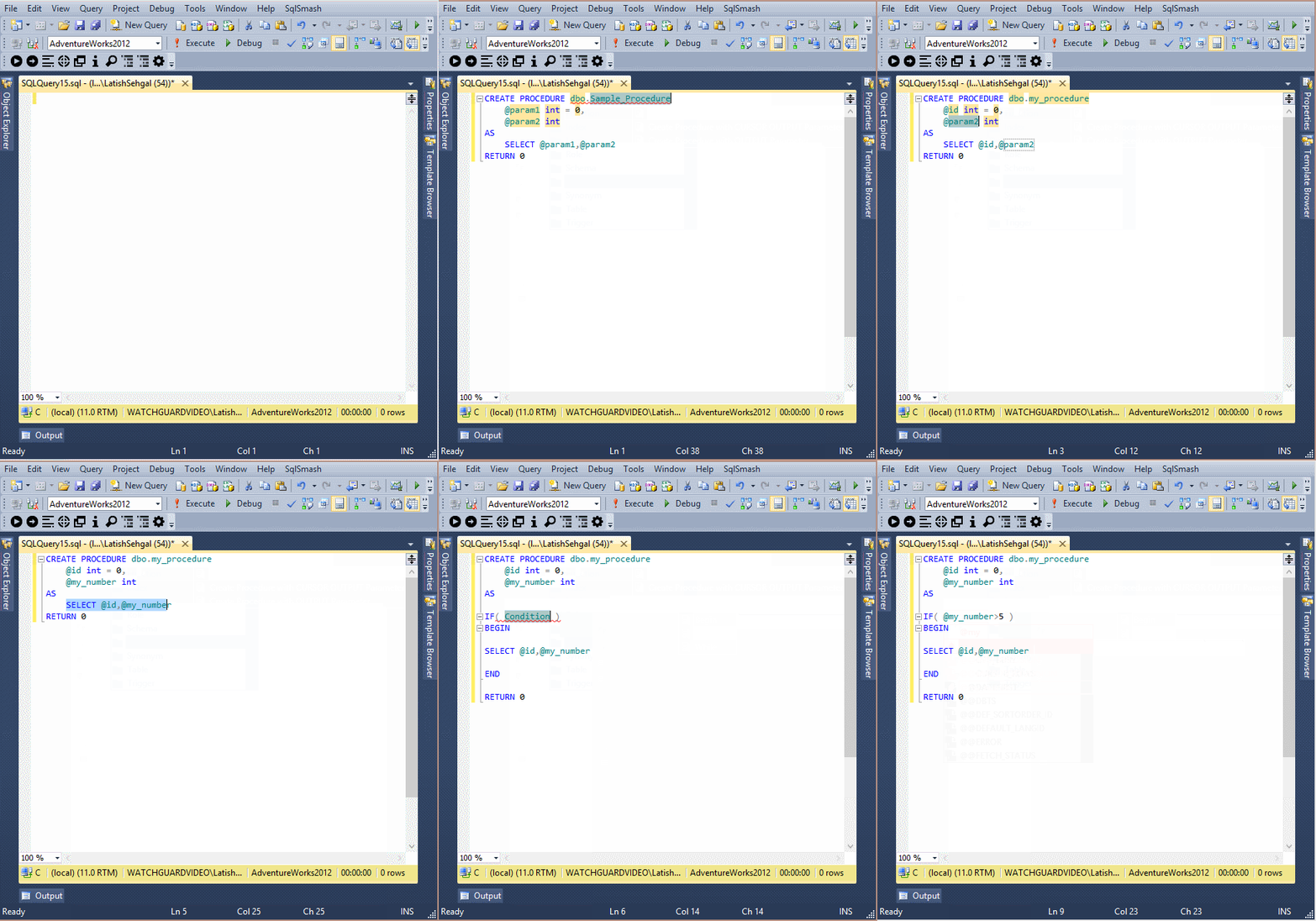
    <content type="html"><![CDATA[<p>Templates and Snippets are a really powerful yet underutilized feature of SSMS. To use templates, open the Template Browser by going to View->Template Explorer. From the browser, you can select the template you want to use by double clicking it. This will open a new query and populate it with the contents of the template. If the template uses any parameters (within angle brackets), you can fill those by going to Query->Specify Values for Template Parameters.</p>

<p><img src="http://ssmstipsandtricks.com/images/blog/template.gif" alt="" /></p>

<p>Snippets are used within an existing query window. To insert a snippet, right click inside the editor and click on &ldquo;Insert Snippet&rdquo;. Once you select the snippet, you can use the TAB key to cycle through the parameters and fill their values. You can also use the &ldquo;Surround With&rdquo; snippets to surround a selected block of code with the If, While or Begin blocks.</p>

<p><img src="http://ssmstipsandtricks.com/images/blog/snippets.gif" alt="" /></p>
]]></content>
  </entry>
  
  <entry>
    <title type="html"><![CDATA[Display Query and Results in a separate tab]]></title>
    <link href="http://ssmstipsandtricks.com/blog/2015/06/02/display-query-and-results-in-a-separate-tab/"/>
    <updated>2015-06-02T03:18:00-05:00</updated>
    <id>http://ssmstipsandtricks.com/blog/2015/06/02/display-query-and-results-in-a-separate-tab</id>
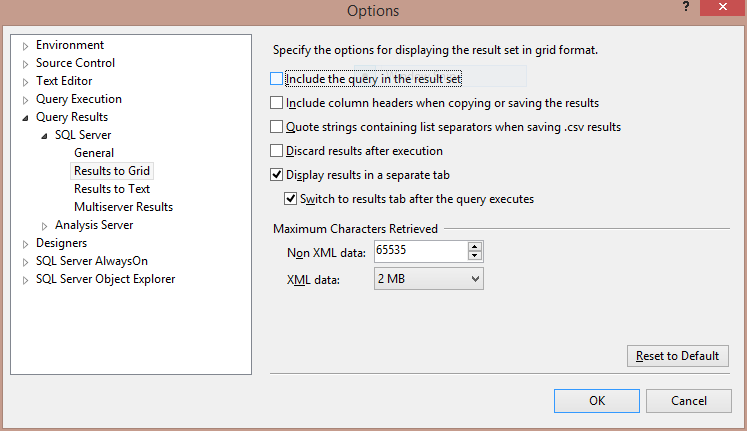
    <content type="html"><![CDATA[<p>If you want to focus on the data after you run a query, and would like to give it as much real estate as possible, you can display the query results in a separate tab by going to Tools->Options->Query Results->Sql Server->Results To Grid and enabling the option &ldquo;Display Results in a separate tab&rdquo;.<br/>
<img src="http://ssmstipsandtricks.com/images/blog/results_separate_tab.png" alt="" /></p>

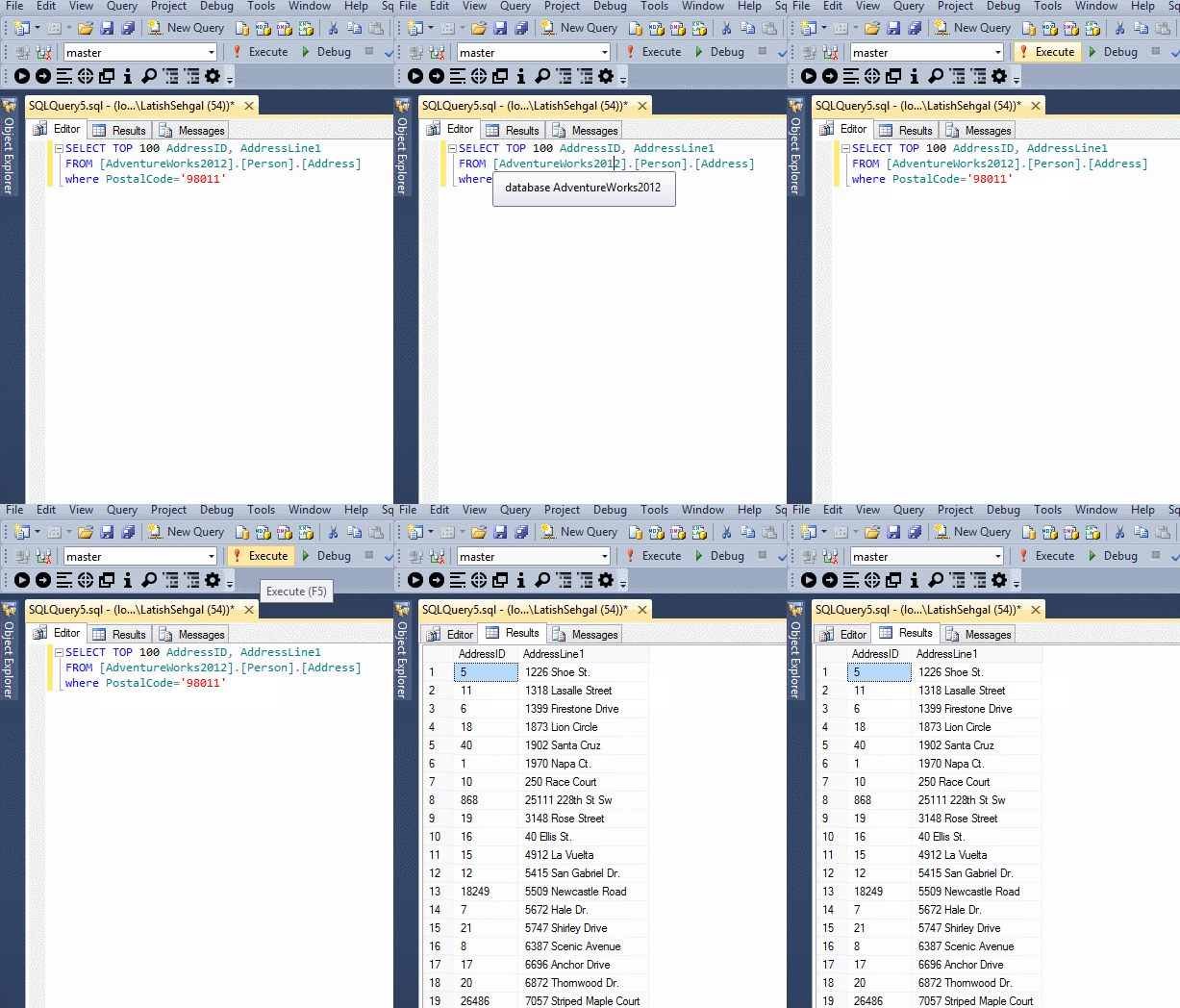
<p>If you check the option nested underneath it, then SSMS will automatically switch to the results tab as soon as the query executes.<br/>
<img src="http://ssmstipsandtricks.com/images/blog/results_separate_tab.gif" alt="" /></p>
]]></content>
  </entry>
  
  <entry>
    <title type="html"><![CDATA[View multiple queries and results side by side]]></title>
    <link href="http://ssmstipsandtricks.com/blog/2015/05/26/view-multiple-queries-and-results-side-by-side/"/>
    <updated>2015-05-26T17:29:00-05:00</updated>
    <id>http://ssmstipsandtricks.com/blog/2015/05/26/view-multiple-queries-and-results-side-by-side</id>
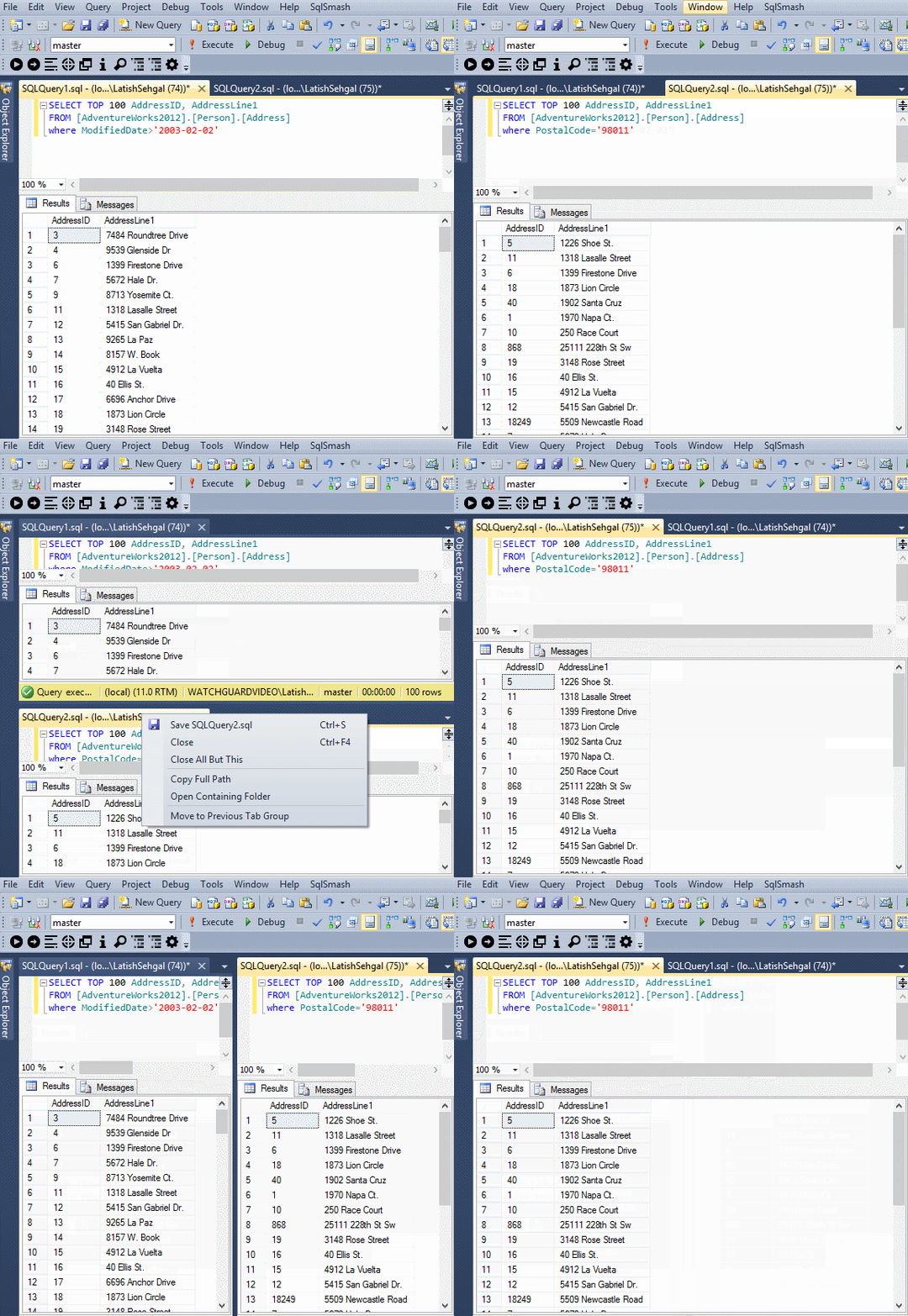
    <content type="html"><![CDATA[<p>If you are working with multiple queries and want to look at the SQL and/or the results side by side, you can do so easily by using horizontal or vertical tab groups.</p>

<p><img src="http://ssmstipsandtricks.com/images/blog/window_tab_group.gif" alt="" /></p>
]]></content>
  </entry>
  
  <entry>
    <title type="html"><![CDATA[Create new line quickly]]></title>
    <link href="http://ssmstipsandtricks.com/blog/2015/01/13/create-new-line-quickly/"/>
    <updated>2015-01-13T16:22:00-06:00</updated>
    <id>http://ssmstipsandtricks.com/blog/2015/01/13/create-new-line-quickly</id>
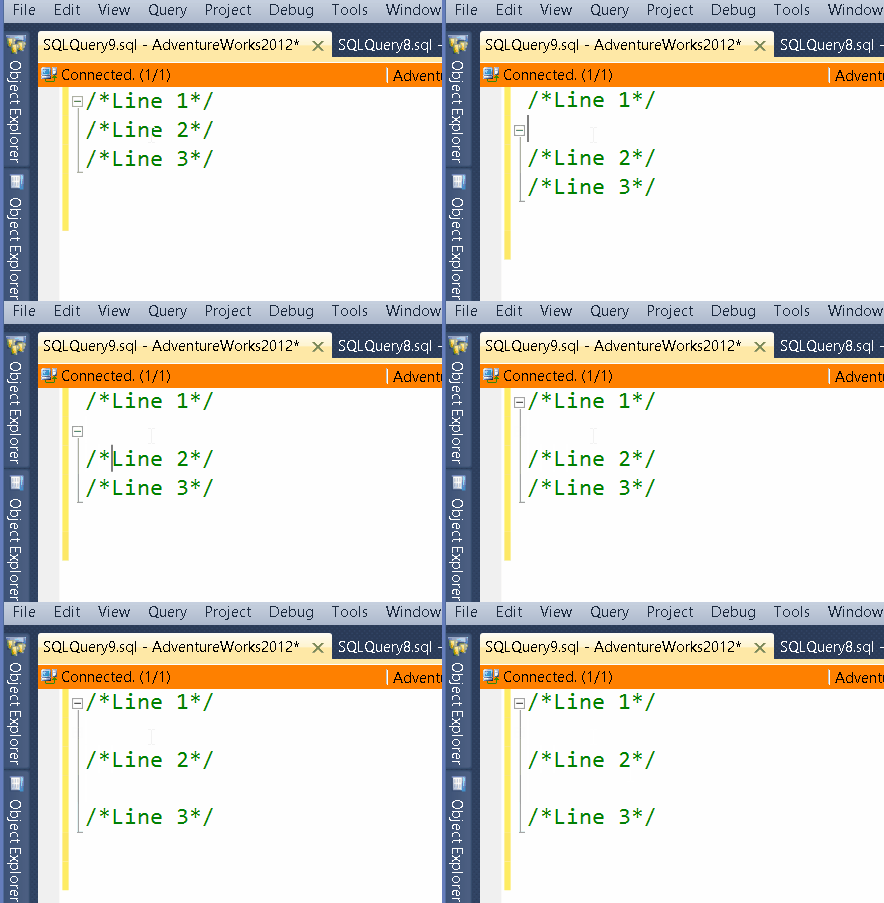
    <content type="html"><![CDATA[<p>You can create a new line above the cursor using Ctrl + Enter. You can create a new line below the cursor using Ctrl + Shift + Enter.</p>

<p><img src="http://ssmstipsandtricks.com/images/blog/new_line.gif" alt="" /></p>
]]></content>
  </entry>
  
  <entry>
    <title type="html"><![CDATA[Move a line or word quickly]]></title>
    <link href="http://ssmstipsandtricks.com/blog/2015/01/06/move-a-line-or-word-quickly/"/>
    <updated>2015-01-06T16:18:00-06:00</updated>
    <id>http://ssmstipsandtricks.com/blog/2015/01/06/move-a-line-or-word-quickly</id>
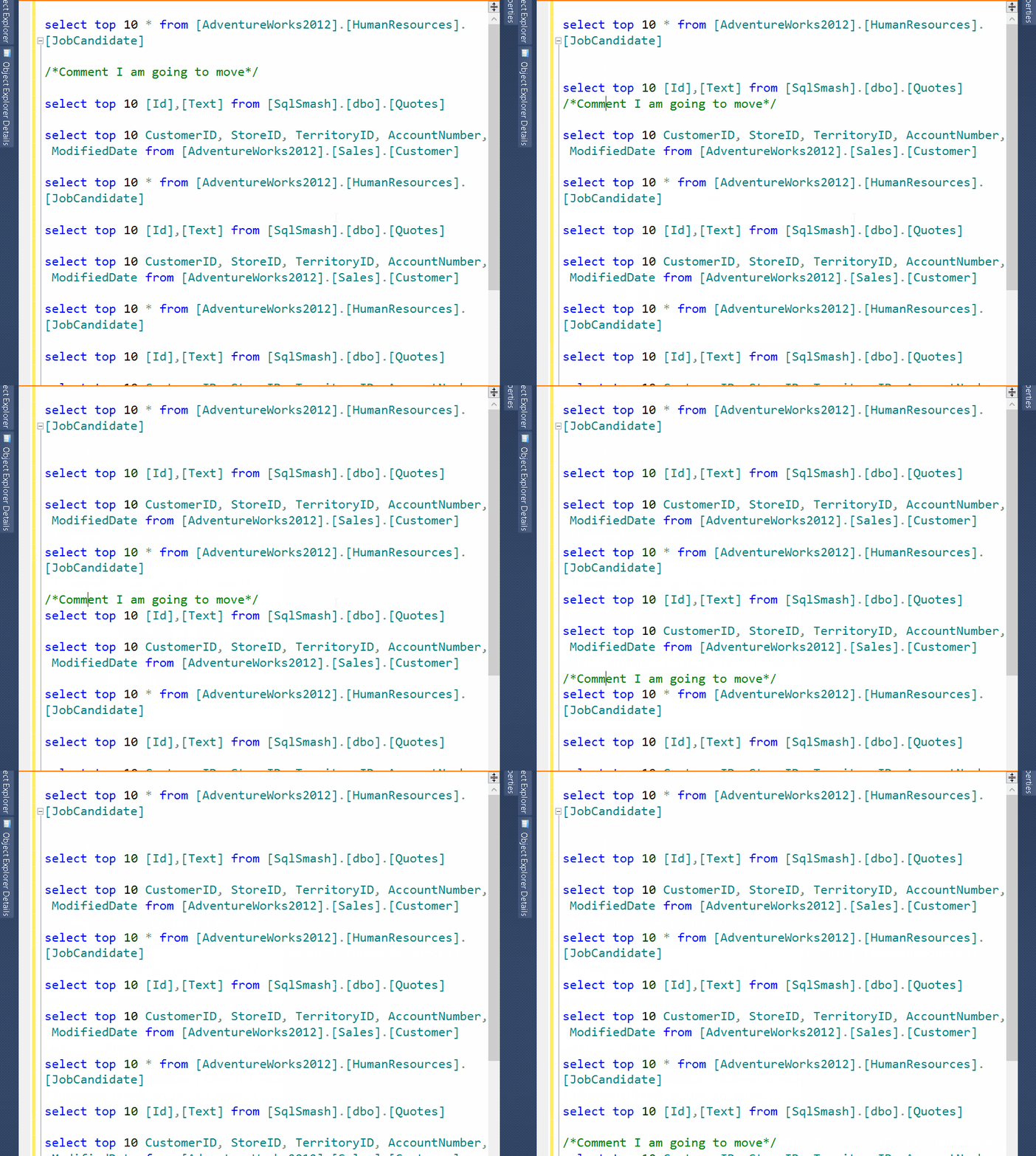
    <content type="html"><![CDATA[<p>You can move a line down quickly using the keyboard shortcut Alt+Shift+T.</p>

<p><img src="http://ssmstipsandtricks.com/images/blog/transpose.gif" alt="" /></p>

<p>Similarly, you can move a word to the right using the shortcut Ctrl + Shift + T.</p>
]]></content>
  </entry>
  
  <entry>
    <title type="html"><![CDATA[Split your query view easily]]></title>
    <link href="http://ssmstipsandtricks.com/blog/2014/12/30/split-your-query-view-easily/"/>
    <updated>2014-12-30T06:03:00-06:00</updated>
    <id>http://ssmstipsandtricks.com/blog/2014/12/30/split-your-query-view-easily</id>
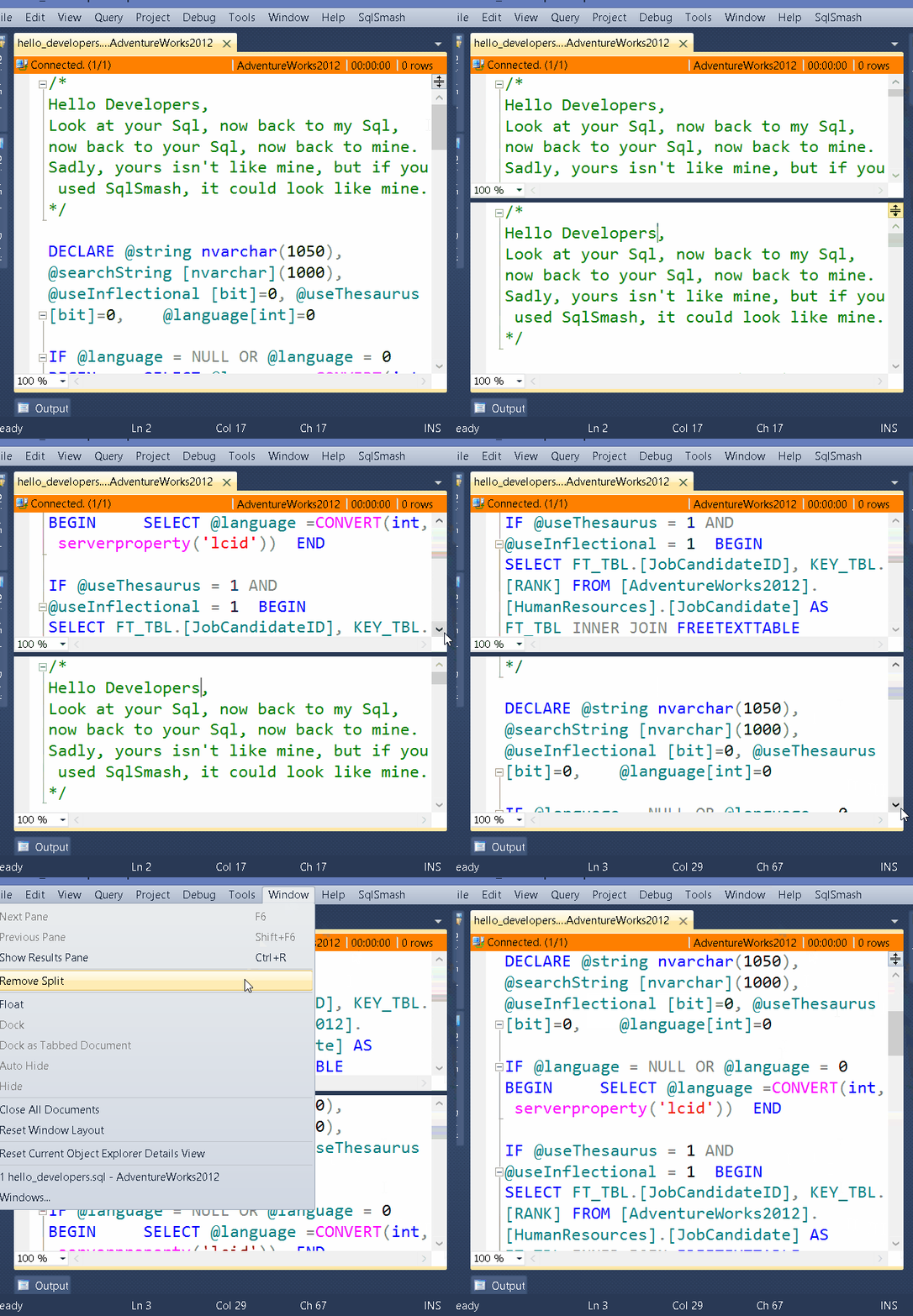
    <content type="html"><![CDATA[<p>If you ever want to look at 2 different portions of a long file, you can easily split a query window using the splitter on the top right. When you are done, you can close the split view by going to Window->Remove Split.</p>

<p><img src="http://ssmstipsandtricks.com/images/blog/split_query.gif" alt="" /></p>
]]></content>
  </entry>
  
  <entry>
    <title type="html"><![CDATA[Change the Default Text in the New Query Window]]></title>
    <link href="http://ssmstipsandtricks.com/blog/2014/12/23/change-the-default-text-in-the-new-query-window/"/>
    <updated>2014-12-23T05:39:00-06:00</updated>
    <id>http://ssmstipsandtricks.com/blog/2014/12/23/change-the-default-text-in-the-new-query-window</id>
    <content type="html"><![CDATA[<p>Do you always like to insert some default text in a new query (like author comments, or transactions). You can change the file at C:\Program Files (x86)\Microsoft SQL Server\110\Tools\Binn\ManagementStudio\SqlWorkbenchProjectItems\Sql\SQLFile.sql to do this.</p>

<p>For example, if I put the following text in there:</p>

<pre><code>/*
Author: &lt;Author, SYSNAME, Author_Name`&gt;
Last Edited: &lt;LastEdited, SYSNAME, LastEdited&gt;
*/
</code></pre>

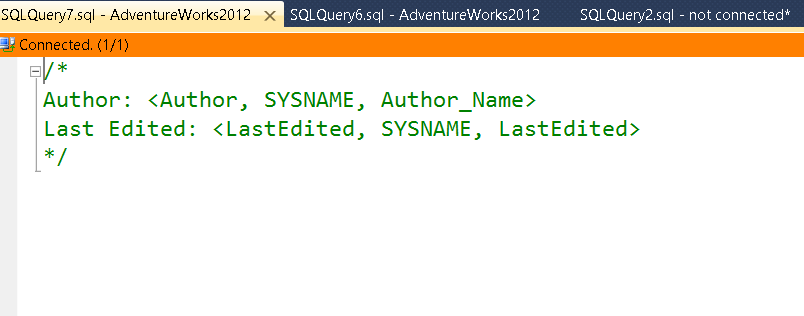
<p>Then I get the below on opening a new query window:</p>

<p><img src="http://ssmstipsandtricks.com/images/blog/new_query.png" alt="" /></p>

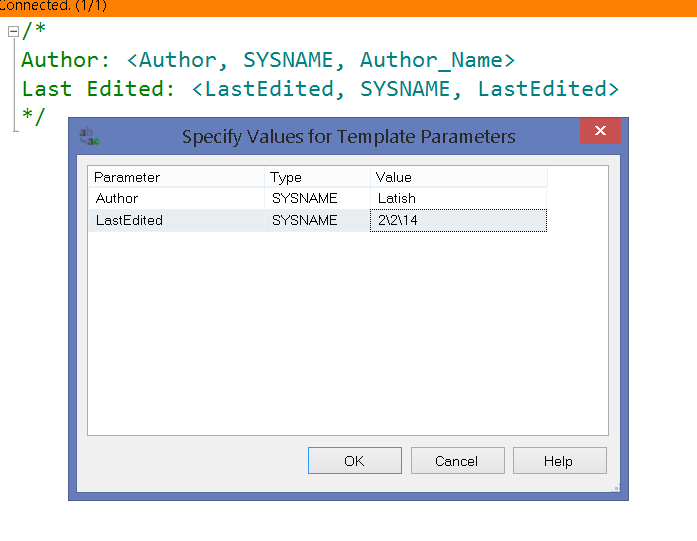
<p>If I press Ctrl + Shift + M, I can insert values for the parameters:</p>

<p><img src="http://ssmstipsandtricks.com/images/blog/new_query_1.png" alt="" /></p>

<p>You can also change the default text for triggers, stored procedures and so on if you look at files inside different sub-folders in that folder.</p>
]]></content>
  </entry>
  
</feed>